
Collections
How collections bring products together as a group.
Use Collections when you want to see which products belong together as a group.
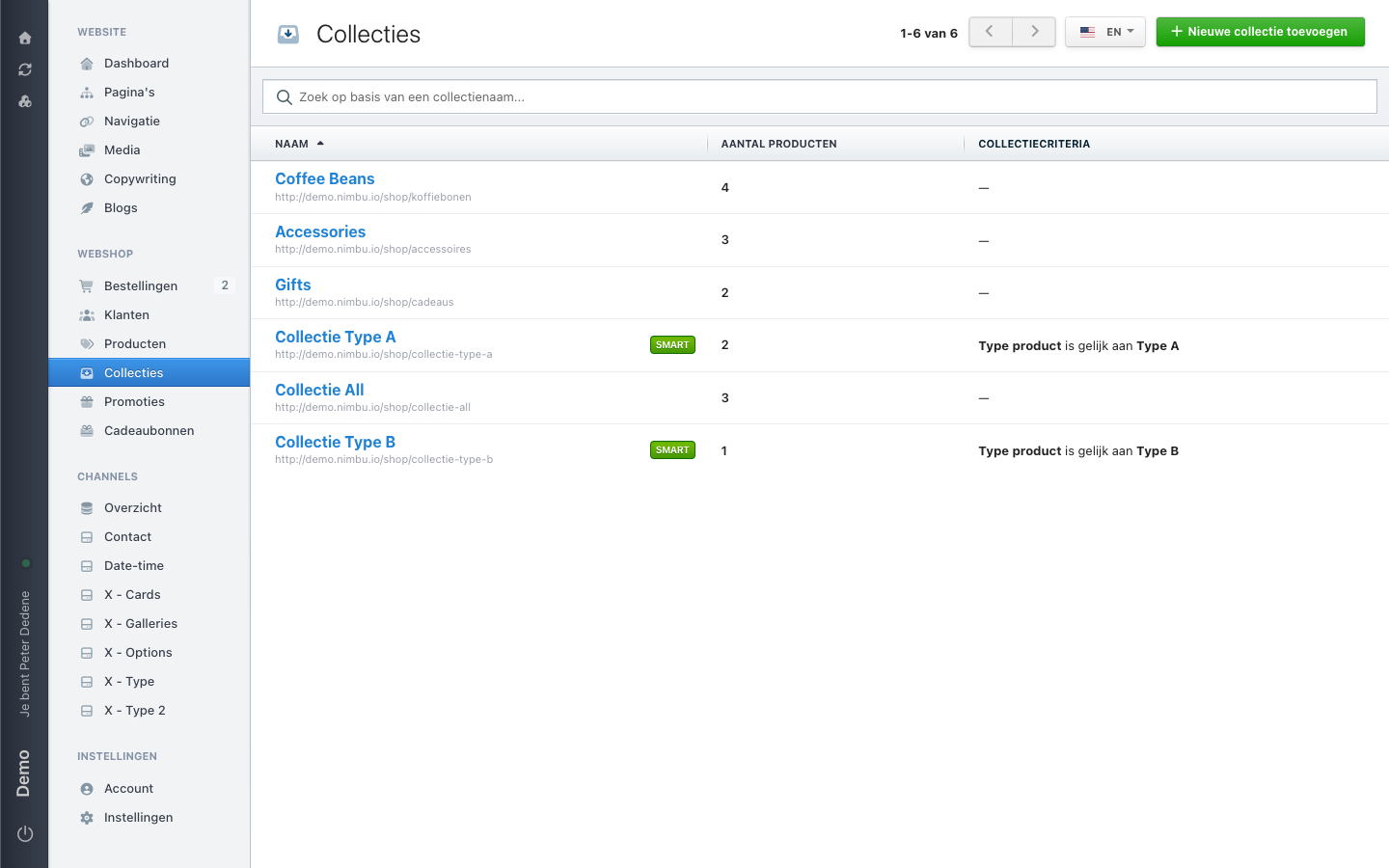 View full size
Outcome
You will know whether your question is about a product group and you know that collections can be assembled in different ways.
Open Collections
- Open Collections from the main menu.
- Check that the page title is Collections.
- Choose the site language you want to view.
- See which collections already exist.
How a collection can be assembled
A collection groups products.
A manual collection lets someone with access choose the products. An automatic collection is assembled from criteria. A virtual collection brings other collections together.
Not every shop has all three collection types. Visitors can view a visible collection on the website. A hidden collection is not public.
Use this page to look up and review collections. Follow an approved guide before changing a collection's visibility, criteria, or products.
If Collections is missing
First check that you selected the right site. If Collections is still missing, ask an administrator for access to Collections.
Does a collection look unexpected? Ask the shop manager which collection type you are viewing.