
Create a collection and assign products
Create a collection and link products to it, either from the collection or from the product.
A collection groups products that belong together. Koffie Zuid uses three: Coffee Beans, Accessories, and Gifts. The same mug is allowed in more than one collection.
 View full size
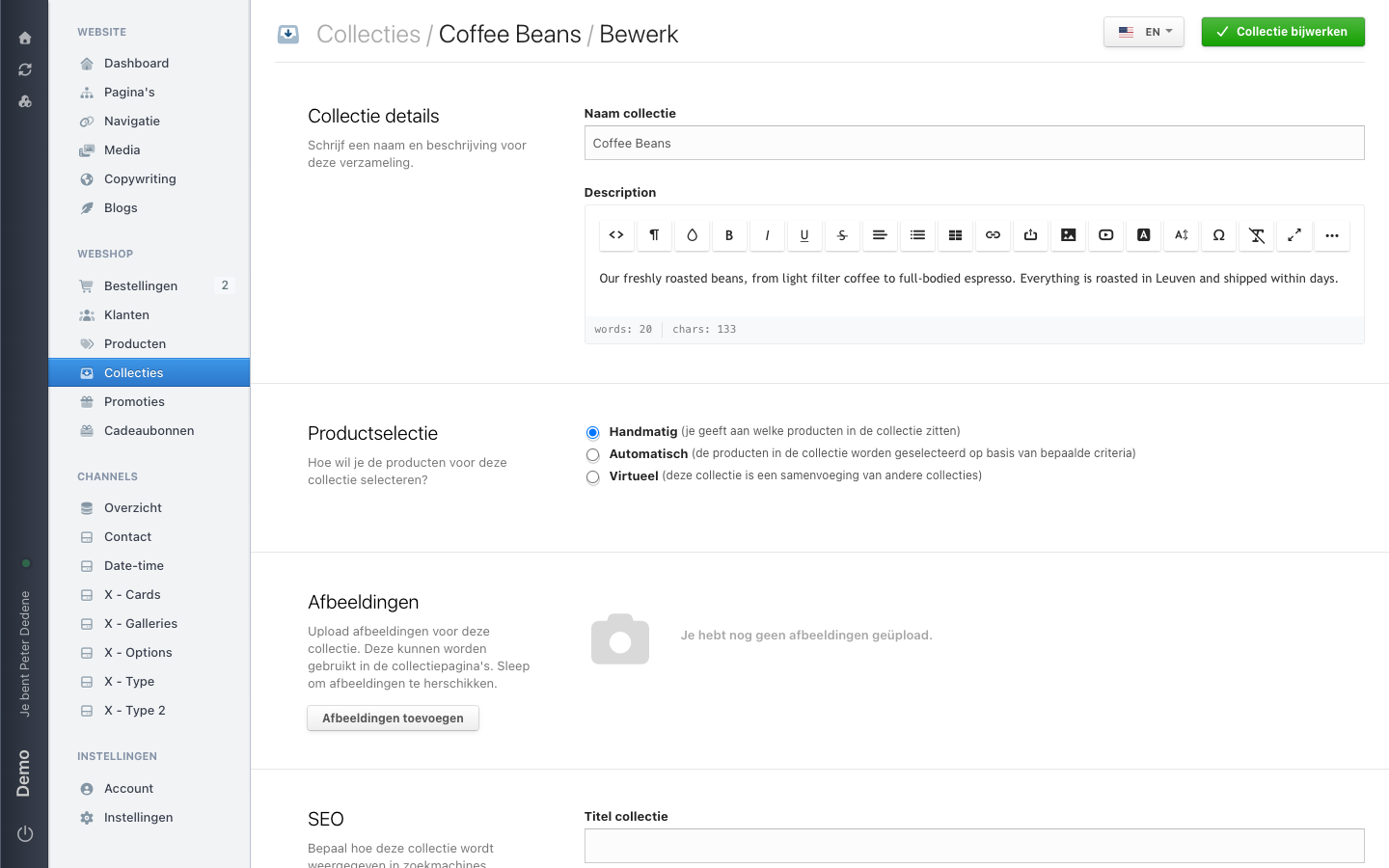
Create a collection
- Open Collections in the left menu.
- Choose Nieuwe collectie toevoegen (add new collection) at the top right.
- Fill in the collection name under the details section, and a description if you want one.
- Under product selection, choose how the collection fills itself.
- Add images if you want them. Dragging changes their order.
- Save with Collectie bijwerken (update collection).
At the bottom sits an SEO section with the title under which the collection appears in search engines. If your site has more than one language, fill in the name in the other languages too, using the language button at the top right.
The three kinds of product selection
Product selection offers three choices:
- By hand: you say which products are in the collection.
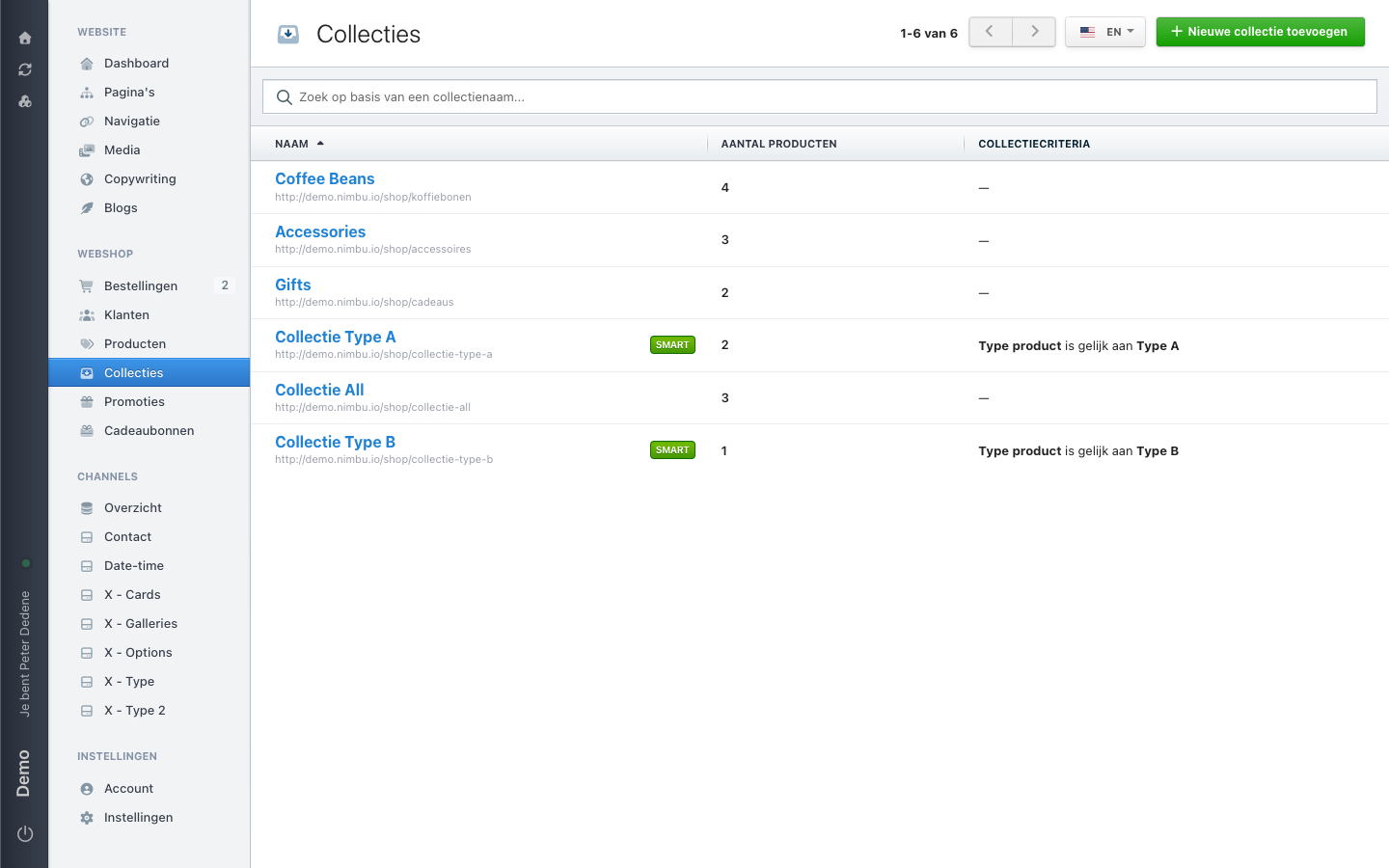
- Automatic: Nimbu selects products from a criterion, for example the product type.
- Virtual: the collection merges other collections.
In the collection list you recognise an automatic collection by its Smart label and by the criterion in the criteria column. A manual collection shows a dash there.
 View full size
Assign products
For a manual collection you can do this from either side, and the result is the same.
From the collection, open the collection and add products to it. This works best when you are filling a new collection in one go.
From the product, open the product and look at the Collecties section, headed with the collections this product is in. This works best when you are placing one new product correctly.
In an automatic collection you do not add products: you change the criterion, or you change the product so it matches the criterion.
Before the collection goes visible
An empty collection in your shop is worse than a collection that does not exist yet. Fill it first, check how it looks on your site, and only then make it visible.