
Manage customers
Find a customer, read their profile and addresses, and handle personal data with care.
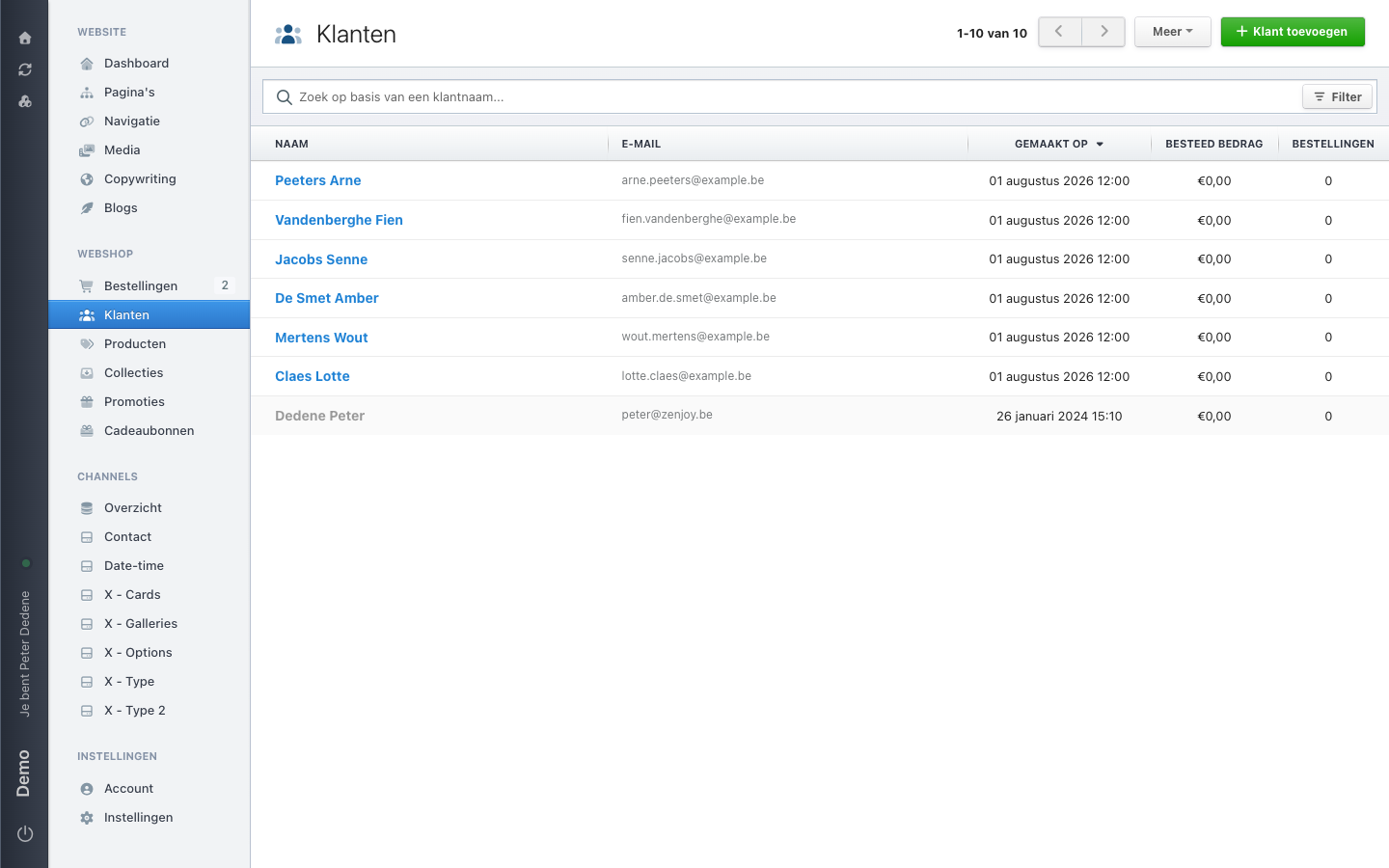
Customers holds everyone who registered in your shop. Most of the time you open this screen to answer one question: who is this person and what did they order.
 View full size
Find a customer
- Open Customers in the store menu.
- Type a name in the search box at the top, or use Filter for a more precise selection.
- Click the name to open the profile and check that this is the right person.
That third step sounds obvious. It is also where things go wrong: two customers with the same name, and you are looking at the address of the wrong one.
The list sorts by creation date by default. Click a column header to sort on that column instead.
What a profile holds
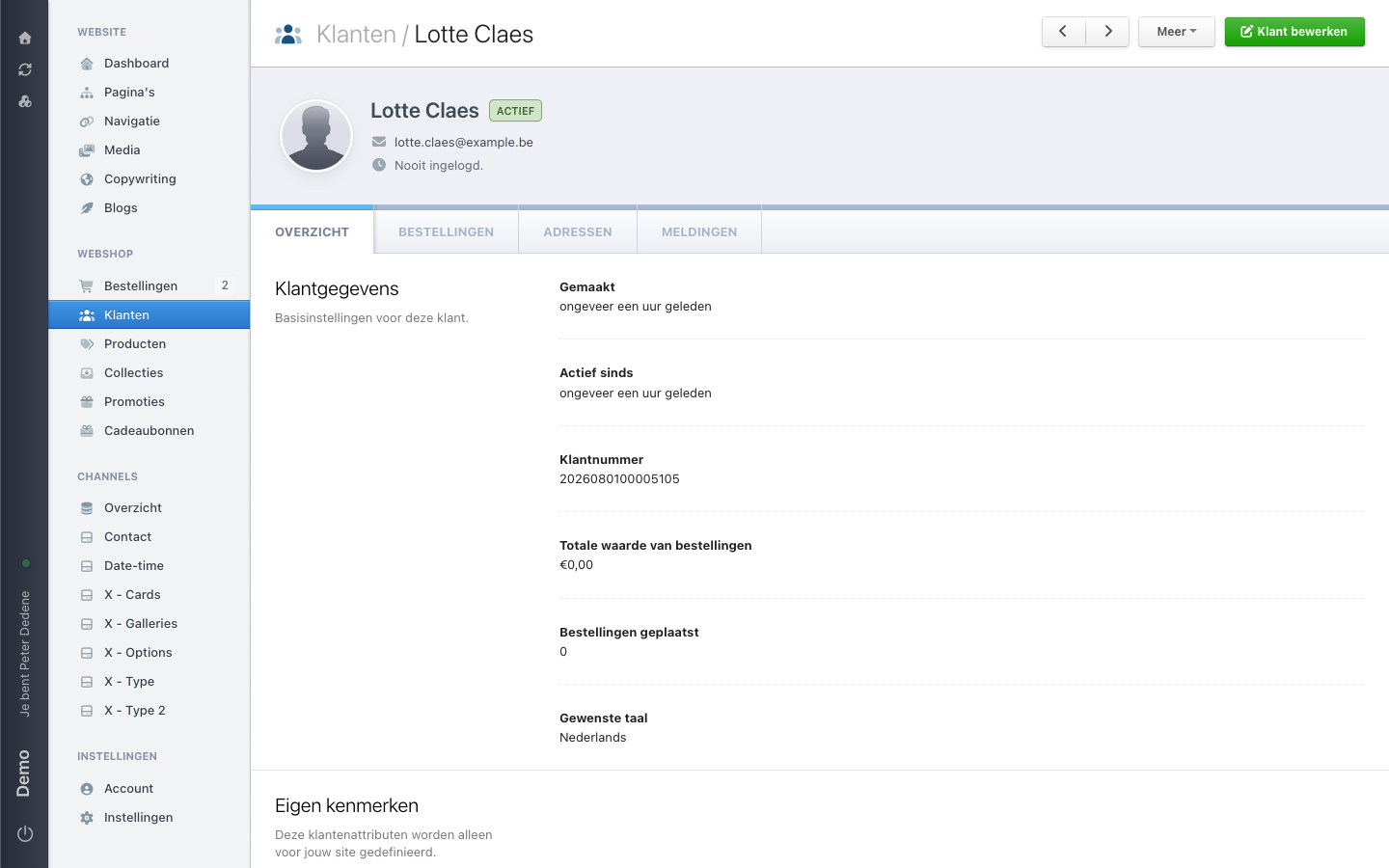
Next to the name sits a status label, for example Actief (active). Below it are the email address and when the customer last signed in. If they never have, it reads "Nooit ingelogd" (never signed in).
The profile has four tabs: overview, orders, addresses, and notifications.
 View full size
The overview tab holds the customer number, when the customer was created, since when they have been active, the total value of their orders, how many orders they placed, and their preferred language. Below that sits a custom-attributes section holding the customer fields you added yourself.
Nimbu also asks for a phone number when you save an address. Annoying when you are filling something in quickly for a customer, but the delivery service does ask for it.
Customers can also belong to groups. You use a group to give part of your customers different prices or different visibility, for example.
The actions behind Meer
A profile has a Meer (more) button at the top right. It holds the actions that go beyond editing, such as signing in as this customer to see what they see, or suspending a customer.
Use them sparingly. Signing in as a customer gives you their full view of the shop; only do it while investigating a concrete problem, and tell your team you did.
Handling what is on this screen
This screen holds personal data about real people. A few habits worth keeping:
- Open a profile because your work needs it, not out of curiosity.
- Do not share addresses, phone numbers, or order history outside your team.
- Keep screenshots of customer data out of chat, tickets, and documents.
- When a customer asks you to correct or delete their data, take it to whoever decides on privacy in your organisation.
If you are unsure whether you may look something up or pass it on, ask first. Data you never open is data you cannot leak by accident.