
Edit site copy
Change a shared piece of text in every language of your site, and know the change counts straight away.
Copywriting holds the short texts that can turn up anywhere on your site: button labels, error messages, a line in the footer. One row, one key, and a field per site language holding the text.
The demo site has 333 of them. Yours will have a different number, but the idea holds: you find a row and change its text.
Finding the row
Open Copywriting in the left menu. The list has two columns, TAALONAFHANKELIJKE SLEUTEL (language-independent key) and VERTALINGEN (translations). The key is the fixed name of the text, something like account.activate.title. The translations column shows the current value per language.
The search field at the top invites you to type a key, word, or phrase in any language. If you do not know the key, search for the text as it appears on the website.
Not sure you have the right row? Ask whoever requested the change. Editing rows to see what moves is a bad idea here, because it changes your live site.
The edit window
Click the row. A window opens titled Edit translation.
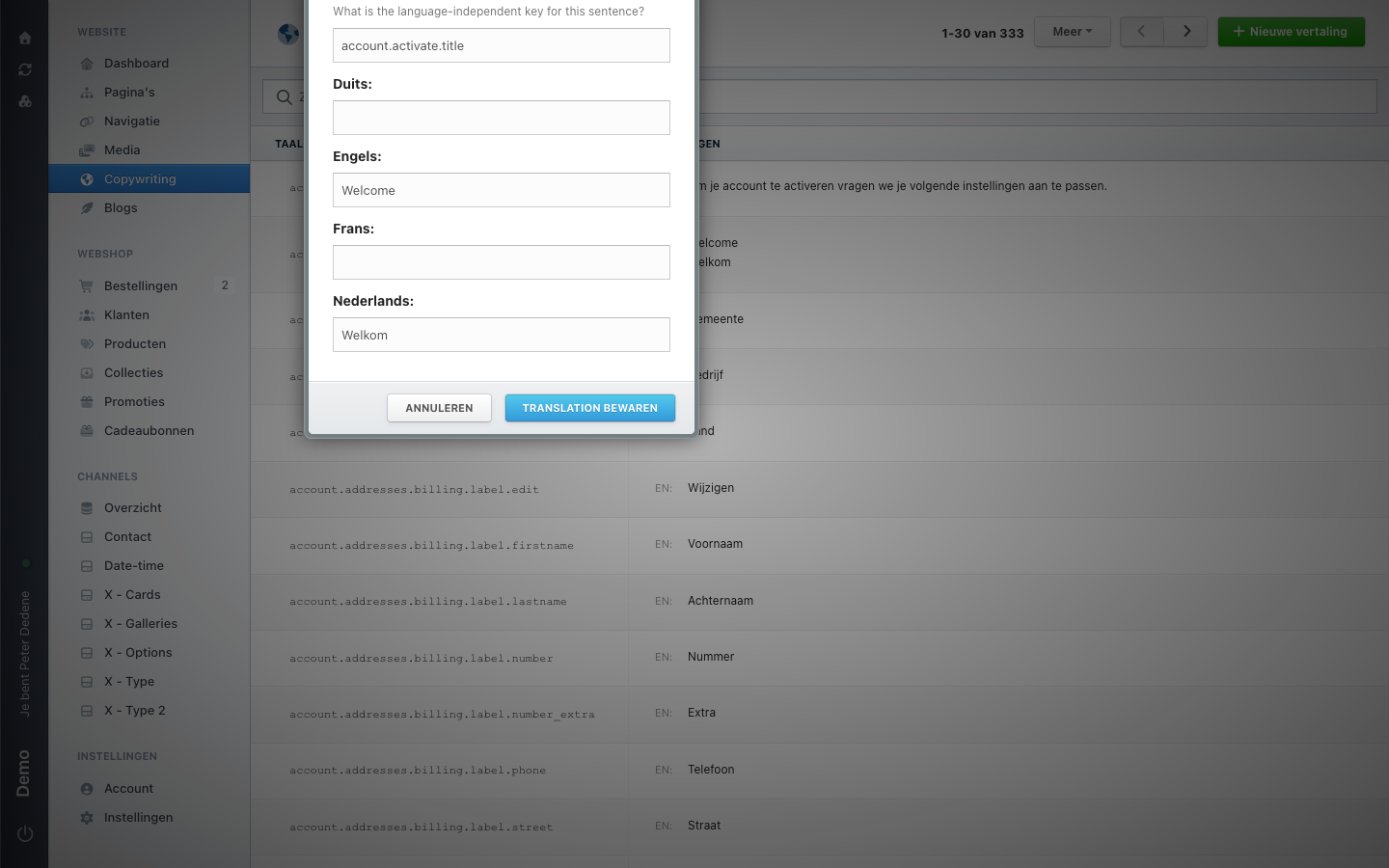
The key sits at the top, under the question "What is the language-independent key for this sentence?". Leave it alone when you are only changing text: the website looks the text up through that key.
Below it sits one field per site language, with the language name in front of it. On the demo site those are Duits (German), Engels (English), Frans (French), and Nederlands (Dutch). Which languages you see depends on the site.
 View full size
An empty language field means nothing has been filled in for that language. What a visitor sees then depends on your theme, so do not leave a language empty because it looks unimportant.
Saving
The save button reads Translation bewaren, half English and half Dutch. Annuleren (cancel) closes the window without changing anything.
The moment you save, the new text sits in the list. There is no draft version and no separate publishing step.
Shared text lives in more than one place
The same key can be used on several pages. Change it and the text changes everywhere at once. After a change, check the website itself to see whether the new wording also fits the other places it turns up.
New rows, import, and export
Nieuwe vertaling (new translation) at the top right creates a key that does not exist yet. A new key is only useful when your theme asks for it, so agree on that with whoever builds the site.
Meer (more) holds Importeren uit bestand (import from file) and Gegevens exporteren (export data). Exporting is the safe way to hand a translator a file. Importing processes many rows in one go, so have an import reviewed before you run it.
Page content or site copy?
If the text belongs to one page, change it there instead. Where do I edit this text? helps you decide.