
Manage websiteMedia
Open the media library
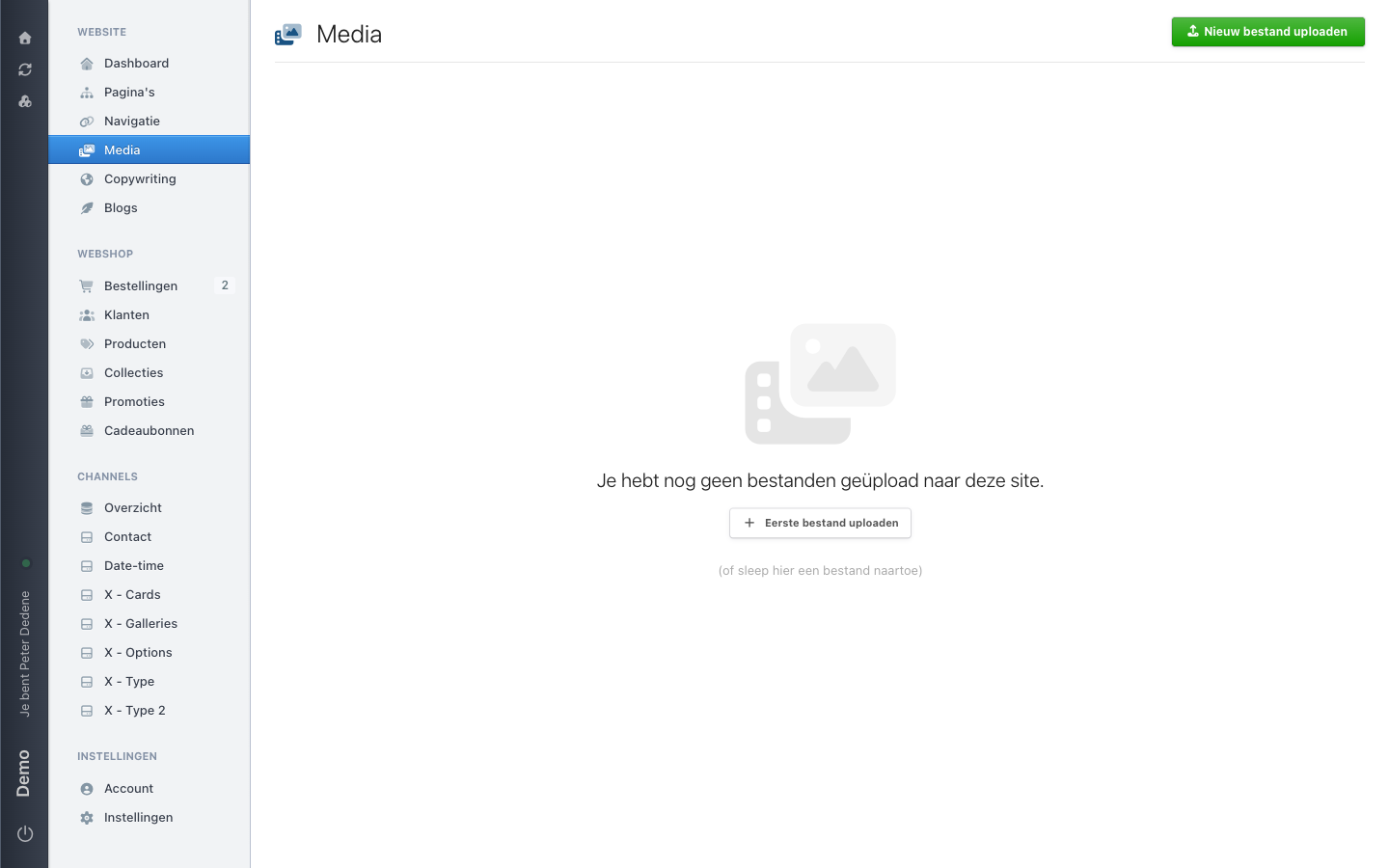
Open Media and see whether the library shows files or is empty.
Use Media to see whether the library for the site you selected shows files or is empty.
 View full size
Outcome
You will know whether the media library shows files or is empty.
Open the library
- Open Website in the left navigation.
- Choose Media.
- Check that you are looking at the right site.
What you might see
- A list of files means the site has visible media in its library.
- An empty library means no files are visible for this site. It is not an error.
If Media is missing, check that you selected the right site. If it is still missing, ask an administrator for access to Media.