
Upload and manage a file
Upload a file to the media library, copy its link, and know what deleting does.
Media holds your site's files: images, documents, and anything you use in pages or blog posts. You upload files there and copy their links.
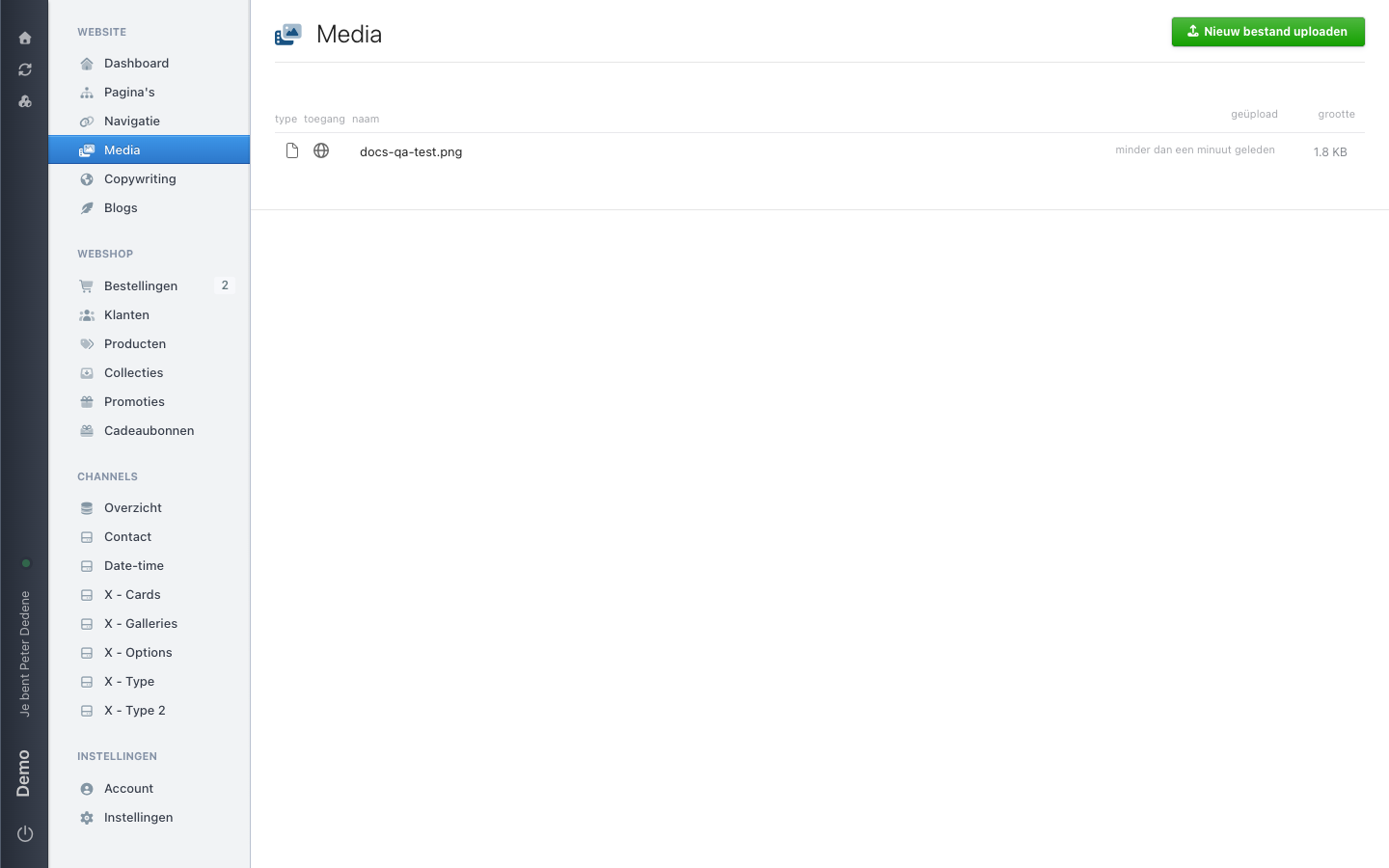 View full size
Upload a file
Open Media in the left menu and choose Upload new file at the top right. While the library is still empty, a link offers to upload the first file.
You can also drag files straight onto the screen. Several at once is fine: pick as many as you need in the file dialog, or drag them together onto the list. Each file gets a progress bar while it uploads.
50 MB per file
A larger file is refused with a message that it exceeds the 50 MB limit. Make the file smaller, or host it elsewhere and link to it.
What the list shows
Each row shows the type, the access, the name, when the file was uploaded, and how large it is. The globe in the access column means the file is publicly reachable through Nimbu's CDN.
The actions on a row
Move your mouse over a row and three actions appear on the right.
url copies the public link to your clipboard and confirms that it did. Paste that link into a page, a blog post, or an email.
Block public access (Openbare toegang blokkeren) takes the file off the CDN. Existing links to it stop working after that, including links in pages that are already online. Nimbu warns you first, and the confirm button reads Make private.
Delete (verwijderen) removes the file.
Deleting is immediate and permanent
There is no trash for media. A deleted file cannot be recovered, and every page that used it shows a broken image or link from then on. The confirmation dialog is in English and warns that there is no undo.
So check where a file is used first. If you are not sure, leave it alone and ask the site owner.
Before you upload
Check that you are on the right site. Do not use customer files or personal data in a test, and name files so you recognise them later.
If Media is missing from the menu, ask an administrator for access.