
Create and test a redirect
Add a redirect so an old web address sends visitors to the right page.
A redirect sends visitors from an old web address to a new one. You need it when a page moves or disappears while the old link still lives in bookmarks, emails, or search results.
 View full size
Where the redirects live
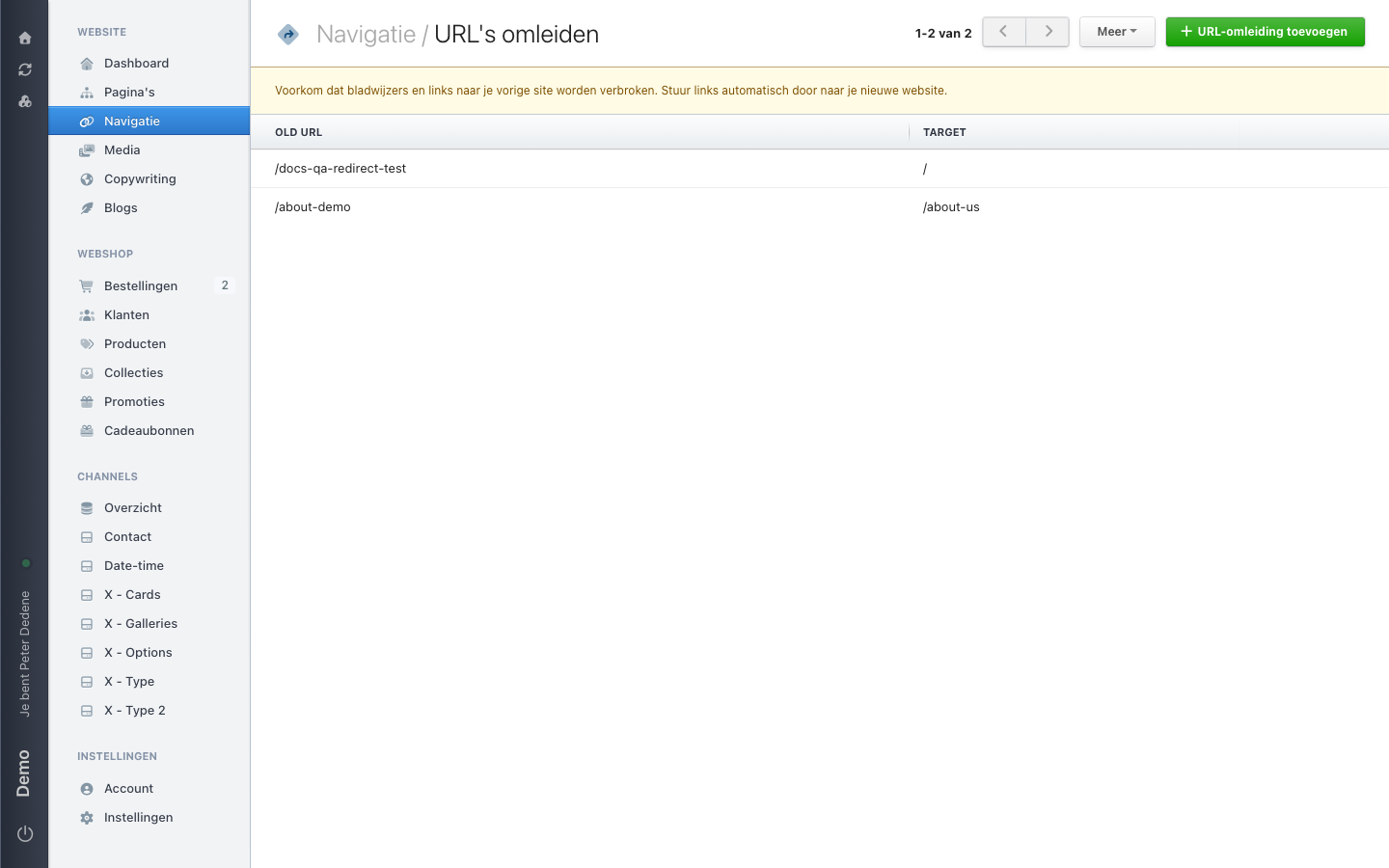
Open Navigation in the left menu and choose Manage redirects (Omleidingen beheren) at the top right. That takes you to the redirects screen.
There is no separate menu item for redirects, and they are not under Settings. The route always runs through Navigation.
The table has two columns, OLD URL and TARGET. Those headers are in English, even in a Dutch administration.
Add a redirect
 View full size
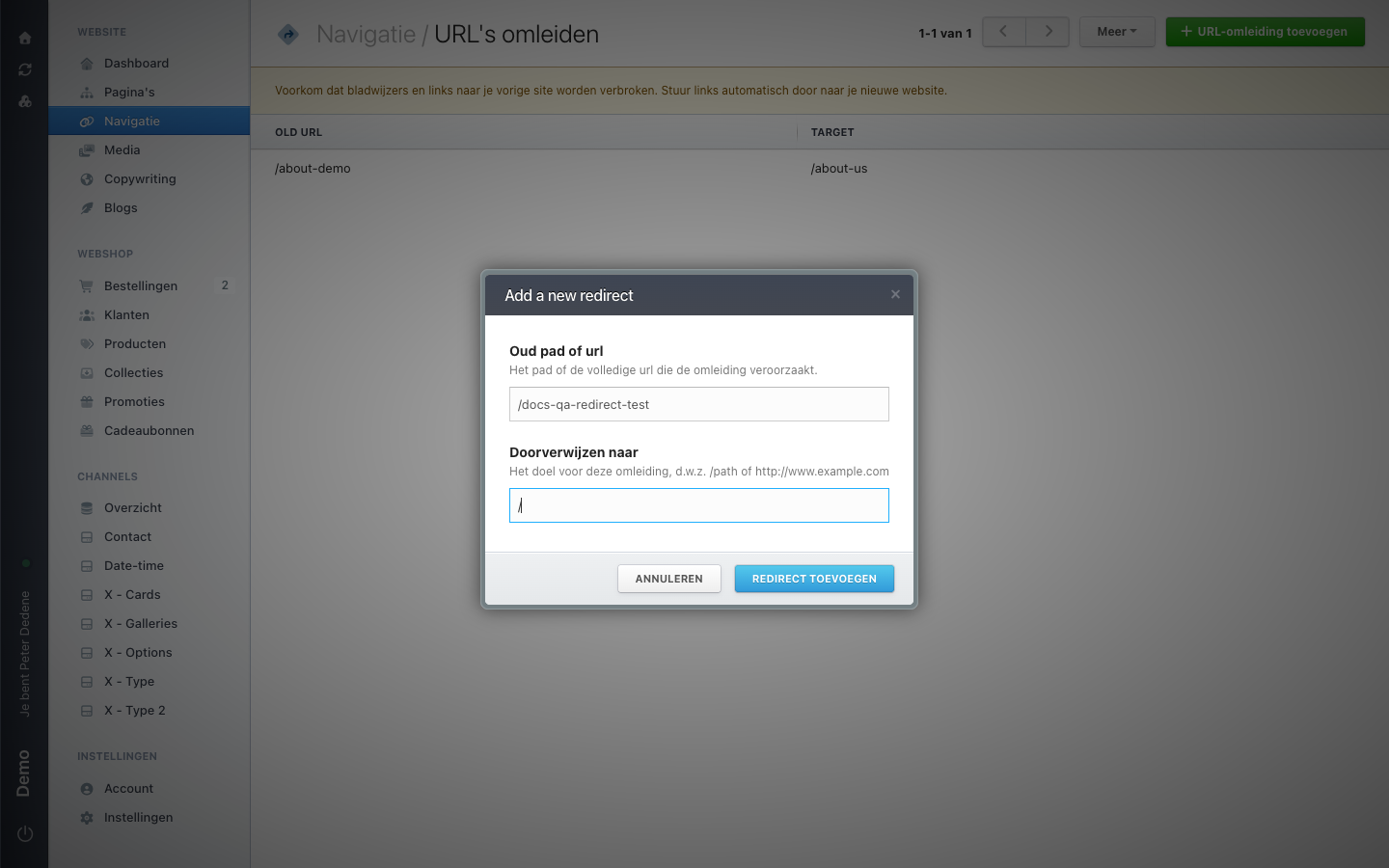
- Choose Add URL redirect (URL-omleiding toevoegen). A dialog headed "Add a new redirect" opens.
- In the first field, enter the address you are moving visitors away from, such as
/old-page. - In the second field, enter the destination. That can be a path such as
/contactor a full address such ashttps://www.example.com. - Confirm with the button at the bottom right.
The row appears in the list straight away.
Test the redirect
A redirect takes effect immediately
There is no draft step and no publish step. As soon as you save, Nimbu sends visitors on with a permanent 301 redirect. Search engines and browsers remember a permanent redirect, so check the destination before you save.
Open the old address in a new browser window. You should land on the destination right away. If you end up somewhere else, check whether another redirect already covered the same path.
Editing, deleting, and bulk work
Hover over a row and two icons appear on the right: a pencil to edit the redirect and a bin to delete it. Deleting cannot be undone, and visitors to the old address no longer reach the destination afterwards.
Behind More at the top right sit Import from file and Export data. Use those when you need to set dozens of redirects at once, for example when moving from an old website.