
Invite and manage team members
Invite a colleague to your Nimbu account, pick the right access, and follow up on a pending invitation.
Team members are the people who work in the Nimbu admin. They are separate from your webshop customers and your website visitors, who live in other lists.
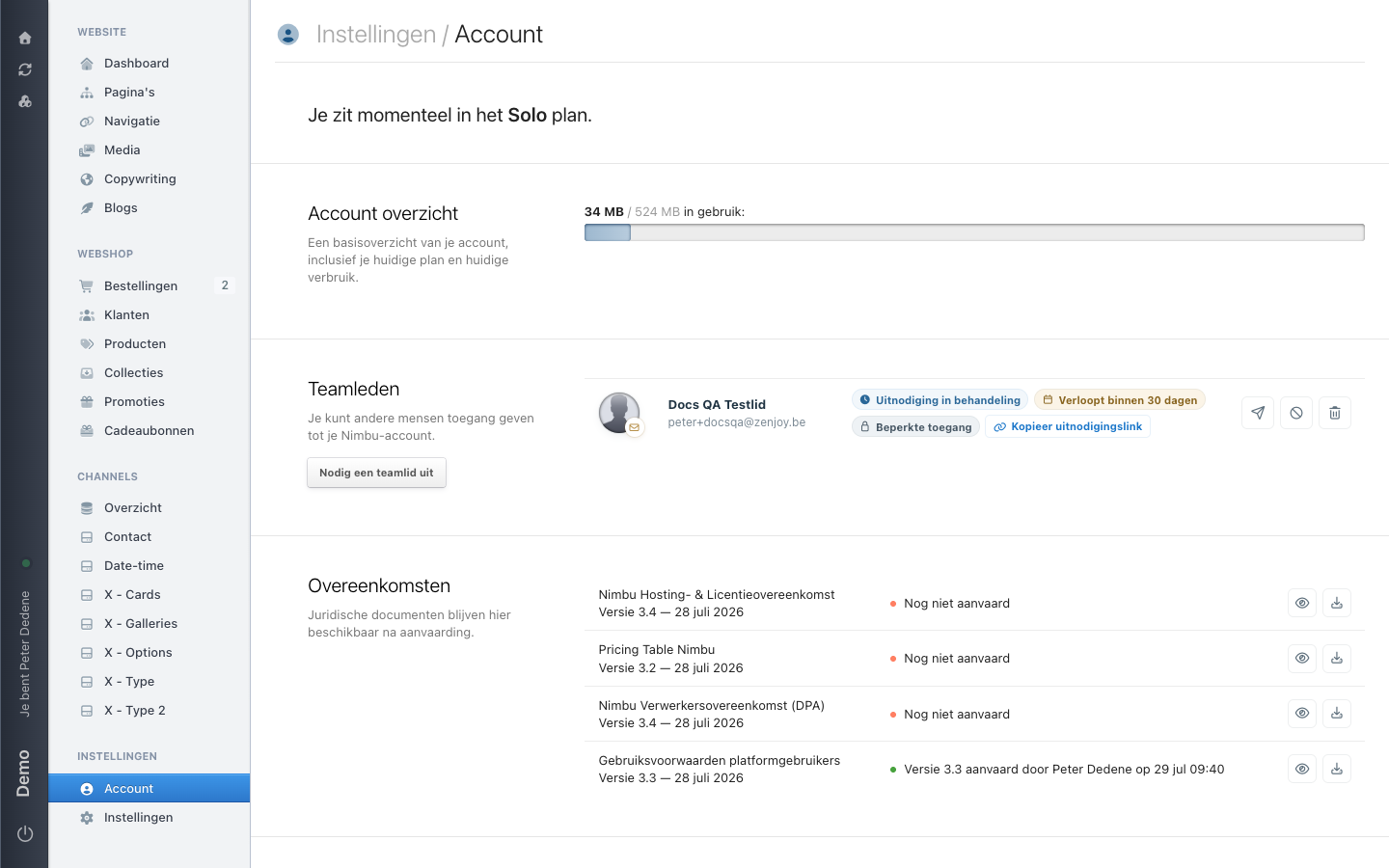
You find them under Your Account, in the Teamleden (team members) section. It shows who already belongs, who still has an invitation open, and the button Nodig een teamlid uit (invite a team member).
Inviting somebody
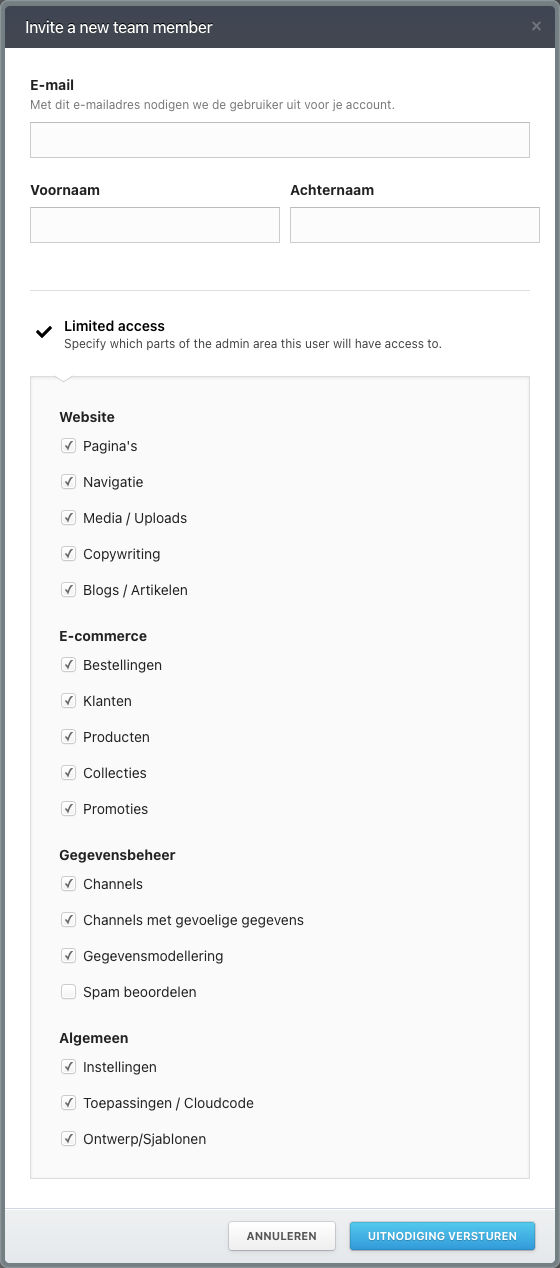
Click Nodig een teamlid uit. A window opens titled Invite a new team member.
You fill in three things:
- E-mail. The screen explains why: this is the address the invitation goes to. Check it letter by letter.
- Voornaam (first name) and Achternaam (last name). That is how you recognise the person in the list later.
Below that sits the Limited access switch. Leave it off and the team member gets full access to what the account covers. Turn it on and a list of areas appears for you to tick: Website, E-commerce, Gegevensbeheer (data management), and Algemeen (general), each with their own areas.
 View full size
Tick what the person needs for the work you are asking of them, and no more. Widening access later is easy; a colleague who wandered into the payment settings by accident is harder to undo. How limited access works lists every area you can tick.
Send it with Uitnodiging versturen (send invitation), or leave with Annuleren (cancel).
A pending invitation
Until the person accepts, they sit in the list with the label Uitnodiging in behandeling (invitation pending) and the note Verloopt binnen 30 dagen (expires within 30 days). If you chose limited access, the row also carries Beperkte toegang (limited access).
 View full size
That row offers Kopieer uitnodigingslink (copy invitation link). Useful when the email is stuck in a spam filter: you paste the link into a conversation or chat message instead.
An invitation link is a key
Whoever holds the link can accept the invitation. Send it only to the person themselves, through a channel where you are sure nobody else is reading. If it reached the wrong person, revoke the invitation and send a new one.
You revoke with the bin icon on the row. Nimbu asks you to confirm. After that the invitation stops working and the row disappears.
Removing a team member
You manage existing team members from that same list. We did not carry out a removal ourselves, so we do not describe the steps here. If you need to take somebody's access away, talk to the account owner, who carries the responsibility for who belongs to the account.
When somebody leaves, think about what they could reach outside Nimbu too, such as shared passwords and API connections.
Full or limited access?
Full access suits the people who run the site as a whole. Limited access suits a defined task: somebody who only writes blog articles has no use for the payment settings.
When in doubt, start limited. A team member who is missing an area will tell you soon enough.