
How limited access works
See which areas you can switch on or off per team member, and why two colleagues see a different menu.
A team member gets full access or limited access. With full access, the person can use the areas that come with the account. With limited access, you switch on which areas those are.
Limited access is not a role with a fixed name. It is a list of ticked areas, and that list can differ per person.
Which areas you can tick
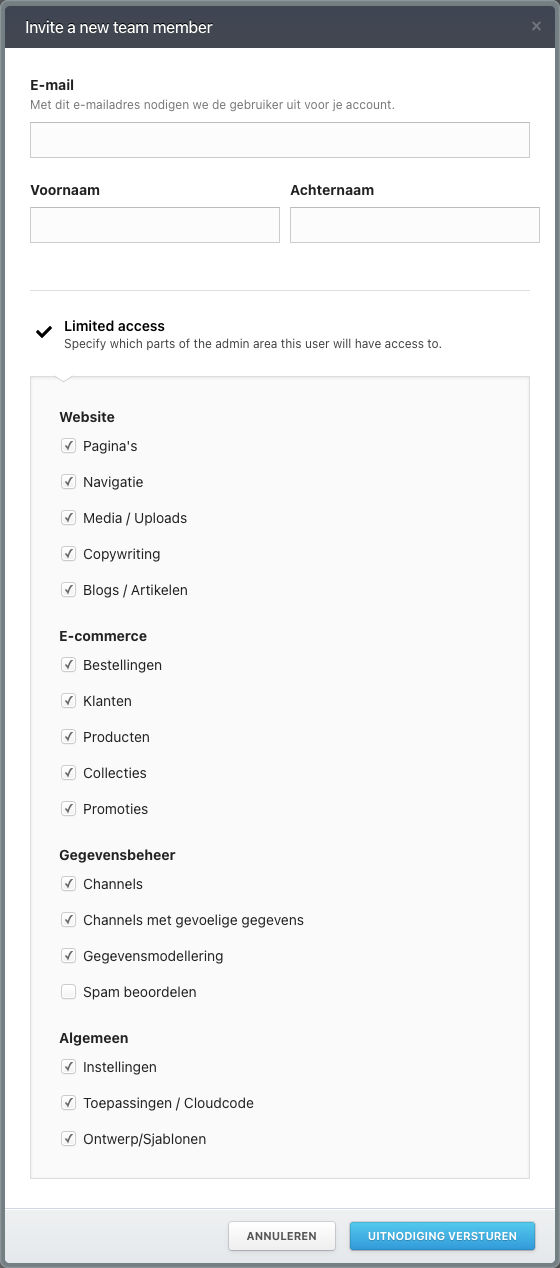
Turn Limited access on in the invitation and the list appears. The areas sit in four groups.
Website: Pagina's (pages), Navigatie (navigation), Media / Uploads, Copywriting, Blogs / Artikelen (blogs and articles).
E-commerce: Bestellingen (orders), Klanten (customers), Producten (products), Collecties (collections), Promoties (promotions).
Gegevensbeheer (data management): Channels, Channels met gevoelige gegevens (channels with sensitive data), Gegevensmodellering (data modelling), Spam beoordelen (spam review).
Algemeen (general): Instellingen (settings), Toepassingen / Cloudcode (apps and cloud code), Ontwerp/Sjablonen (design and templates).
 View full size
Two of them deserve a second look while you tick. Sensitive-data channels sit apart from ordinary channels, so somebody can manage the ordinary ones without reaching the sensitive ones. And settings opens the site settings, domains, payments, and integrations included.
What a limited team member notices
Areas you leave unticked disappear from that person's menu. They see no error and no greyed-out box, just a shorter menu.
That is why two colleagues can have a different screen without anything being broken. When a menu item is missing for somebody, it is usually one of these four:
- their access does not include that area;
- the site does not use the related feature;
- a custom menu does not show the area;
- the area has an extra condition. Design, for instance, also needs an active design or theme.
Access is checked per site
An account can hold more than one site. Access is evaluated for the site selected at that moment, so somebody can manage pages on one site and not on another.
Account information such as the list of team members or the sites belongs to the account as a whole rather than to one site.
Who may change what
The account owner carries the account-level responsibility for access. Administrators manage what their own access permits. A person with limited access cannot assume they can see all account or site settings.
When access does not match somebody's work, this is the question for the owner or an administrator: which area is needed, and on which site?
Where you set it
You choose limited access when you invite somebody. In the Teamleden (team members) list, those people carry the label Beperkte toegang (limited access). See Invite and manage team members for the invitation itself.