
Your profile and security
Change your own details, language, and password, and see where two-factor authentication and your sessions live.
Your profile is about you, not about the account or the site. The language of the admin, your password, and your two-factor setting all sit on one page.
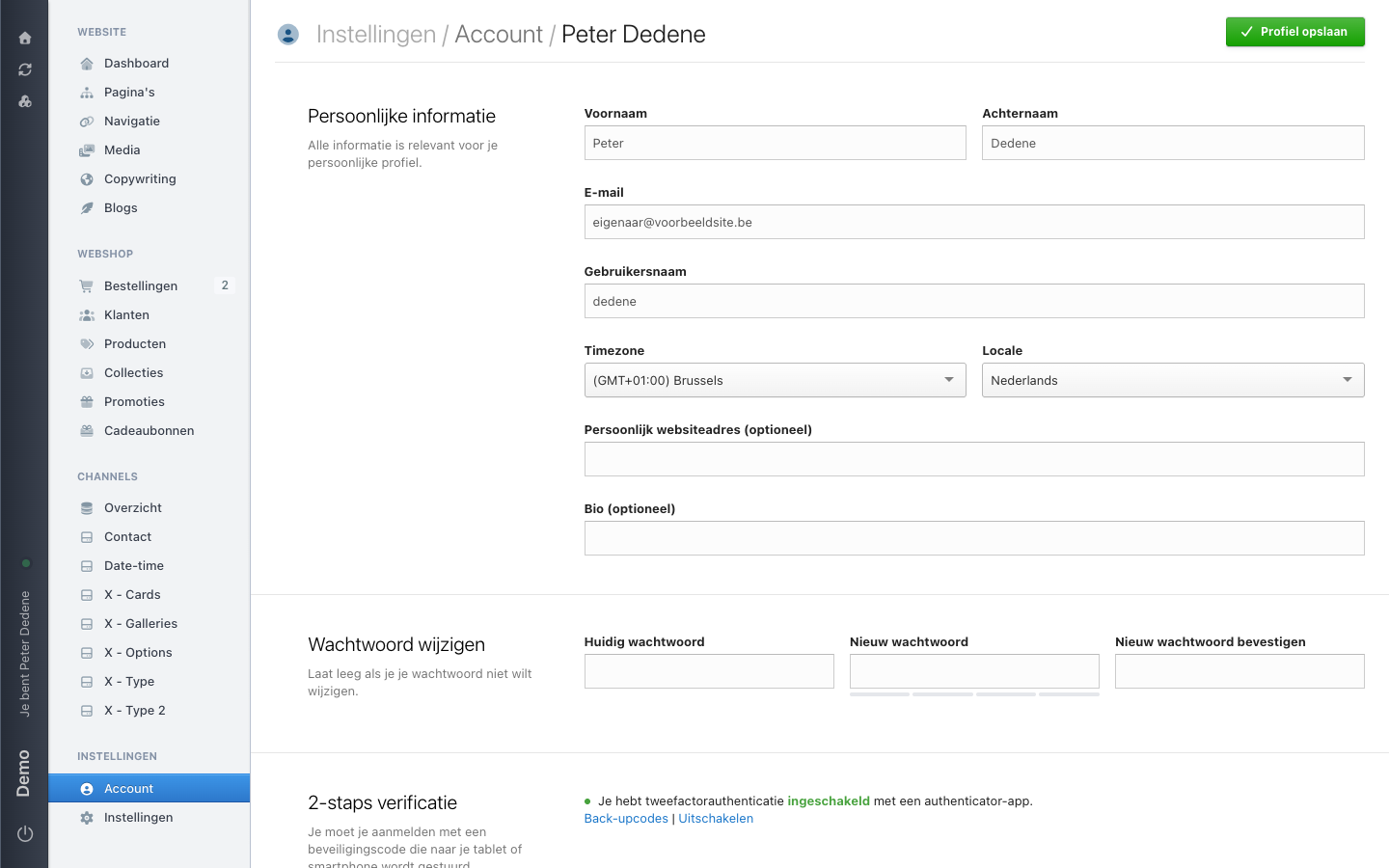
You reach it through Your Account: click your own name in the list of team members. The heading then reads Instellingen / Account / your name, with Profiel opslaan (save profile) at the top right.
 View full size
Personal information
The top section holds Voornaam (first name), Achternaam (last name), E-mail, and Gebruikersnaam (username). Next to them sit two fields that change your screen: Timezone decides which timezone you read dates in, and Locale decides the language of the admin.
If you work with colleagues in different countries, that timezone is not a detail. An order placed "yesterday at 23:40" means something different per setting.
Persoonlijk websiteadres (personal website) and Bio are optional. Fill them in or leave them empty.
You confirm any change with Profiel opslaan.
Changing your password
The Wachtwoord wijzigen (change password) section asks for your current password, then the new one twice. A bar under the new field shows how strong it is.
The line under the heading matters most: leave the fields empty if you do not want to change your password. So you can update your name or timezone without touching them.
Two-step verification
With two-factor authentication you sign in with your password and a security code. Somebody who guesses your password still does not get in.
The section shows your current status, for instance that you have two-factor authentication enabled with an authenticator app. When it is on, two links appear: Back-upcodes (backup codes) and Uitschakelen (disable). Backup codes are your way back in when you lose your phone, so keep them somewhere you can reach without that same phone.
We did not walk through the setup itself, so we do not describe those steps here. This page tells you where it lives.
Recent sign-in history
At the bottom sits an overview of recent sign-ins, with the button Alle sessies afmelden (sign out of all sessions). It ends your sessions, including the ones on devices you do not have with you.
If you do not recognise a sign-in, use that button and change your password straight after. Report it to the account owner too.