
Create and arrange a menu
Add menu items, choose the right destination, and set the order visitors see.
A menu is a list of links your theme shows somewhere, such as at the top of the page or in the footer. You manage them under Navigation (Navigatie).
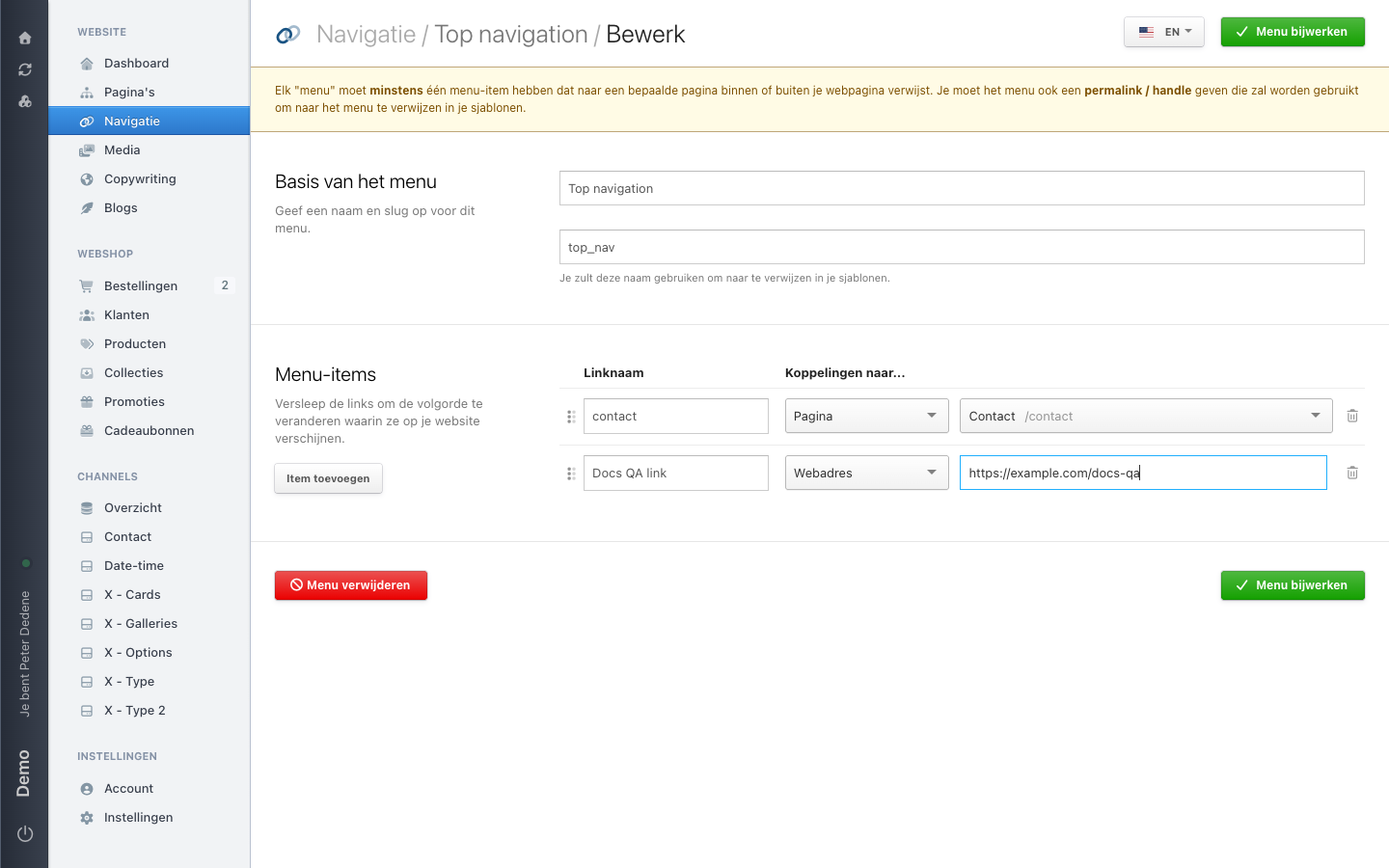 View full size
Open or create a menu
Open Navigation in the left menu. The table lists every menu with its links. Click a menu to edit it, or choose Add menu (Menu toevoegen) for a new one.
A new menu needs two things: a name and a permalink or menu slug. Your theme uses that slug to call the menu, so agree on it with whoever builds the site.
Add an item
- Choose Add item (Item toevoegen) under the menu items. An empty row appears.
- In Link name, type what the visitor reads.
- Under Links to…, choose the destination type: Page (Pagina) or Web address (Webadres). There are no other types.
- For Page, pick the page in the search field; you see its title with the path next to it, such as
Contact /contact. For Web address, type the full address. - Choose Update menu (Menu bijwerken).
Nimbu returns to the overview and confirms that the menu was updated.
Change the order
Drag a row by the handle on its left to move it up or down. The order in this list is the order visitors see. Here too, the new order only takes effect once you choose Update menu.
Remove an item
The bin icon alone does not remove anything
Clicking the bin icon on a row hides the row, but the item is still in the menu. It is removed only when you then choose Update menu. If you leave the screen without saving, the item stays.
The confirmation dialog is in English, with CANCEL and DELETE ITEM buttons.
The red Delete menu button at the bottom removes the whole menu, not one item. Use it only when you are sure no template still calls this menu.
Languages
The language button at the top right decides which language you are editing the items in. Switch language first, then change the link names, or you will write into the wrong language version.
If Navigation is missing from the menu, check the selected site, then ask an administrator for access.