
Create and review an article
Create a blog post, fill in the right fields, and share a preview link to your draft.
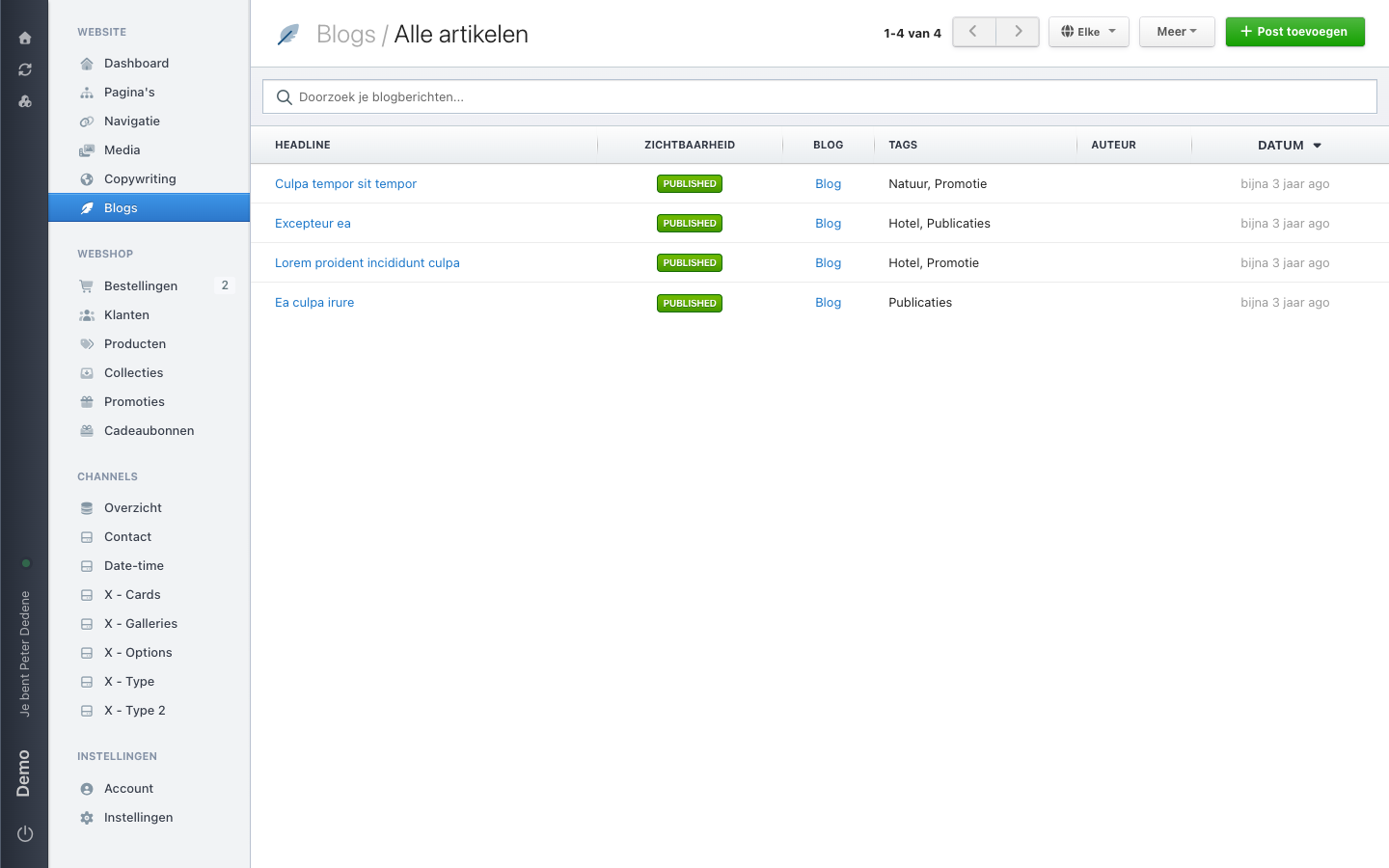
An article always belongs to one blog. You create it from Blogs in the left menu, which opens on the list of all articles.
 View full size
Start a new article
Choose Add post (Post toevoegen) at the top right. The form opens empty, with a cancel button and Create new blog post at the top.
Next to it sits Manage your blogs, which takes you to the blogs themselves. Use that only when you want to look at or create a blog, not for an article.
The fields in the form
The Blog post section holds the heart of your article:
- Title is what readers see in a list.
- Header image is the large image at the top of the article.
- Thumbnail image is a separate image for the overview list.
- Excerpt is the short summary; the field counts words and characters as you type.
- Content is the article text itself.
- Author and Blog come from a list. Without a blog the article belongs nowhere.
Below that sit Tags (separated by commas), Visibility with the publication state, Social networks for the sharing image and social accounts, and Search engines for the title, the meta description (up to 180 characters), and the keywords.
Do not use names or other personal data to try out a field.
Save it as a draft
Leave the publication state on draft and choose Create new blog post. The article then opens in the editor, and the article list shows its visibility as DRAFT.
Get your draft reviewed
In the editor of an existing article, the More menu offers two preview options:
- Preview article opens the article as it will look.
- Generate preview link (Voorbeeldlink genereren) creates a shareable link to the draft, for someone without a Nimbu account.
Treat that preview link as confidential and send it only to the people reviewing the text.
Deleting an article cannot be undone
The red Delete article button at the bottom of the editor removes the article straight away. There is no trash for articles.
If an option is missing
The available languages and article options depend on the selected site and blog. Check both first. If the article area stays out of reach, ask an administrator for access to blog management.