
Import and export entries
Turn rows from a file into channel items, and get the contents of a channel back out.
The Meer (more) button in a channel's toolbar holds two actions for bulk work: import from a file, and export all data. The first turns rows from a file into items, the second makes a file out of what is already there.
Importing
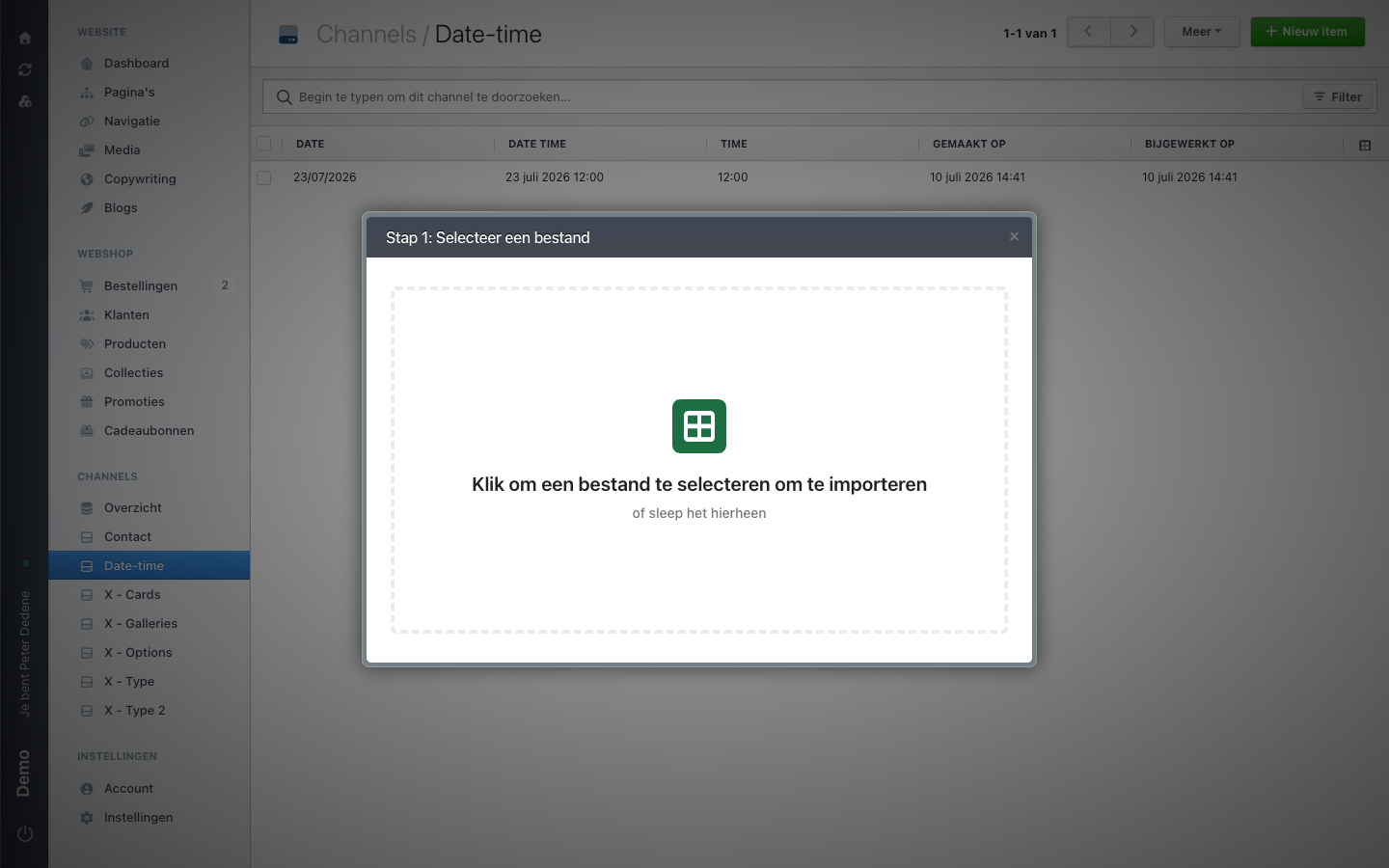
Importing from a file opens a window over the item list. The first step is headed Stap 1: Selecteer een bestand (step 1: select a file): you click the drop zone to pick a file, or you drag one into it.
 View full size
After that you map each column in your file onto a field of the channel and confirm. Columns you do not map are left out.
That window is the only way in. There is no separate web address you can open directly.
Preparing your file
Start from an export of the same channel. That gives you exactly the columns the channel knows, in the shape Nimbu expects back.
Watch out for these:
- Required fields. If a row misses a required value, that row does not come in. Nimbu refuses an item without a required value, through an import as well.
- Unique fields. Two rows with the same value in a unique field cannot both exist.
- Option lists. A value that is not in the list of options does not belong there. Add the option to the structure first.
- References. A reference points at an existing item in another channel. If that item does not exist yet, import that channel first.
- Dates. A
datefield expects a day such as2026-09-01. Spreadsheet programs sometimes write dates in their own notation, so check before you upload.
Test on a handful of rows first
An import that maps the wrong column onto the wrong field creates hundreds of wrong items in one go. Try your file with a few rows, check the result, and only then run the rest.
Exporting
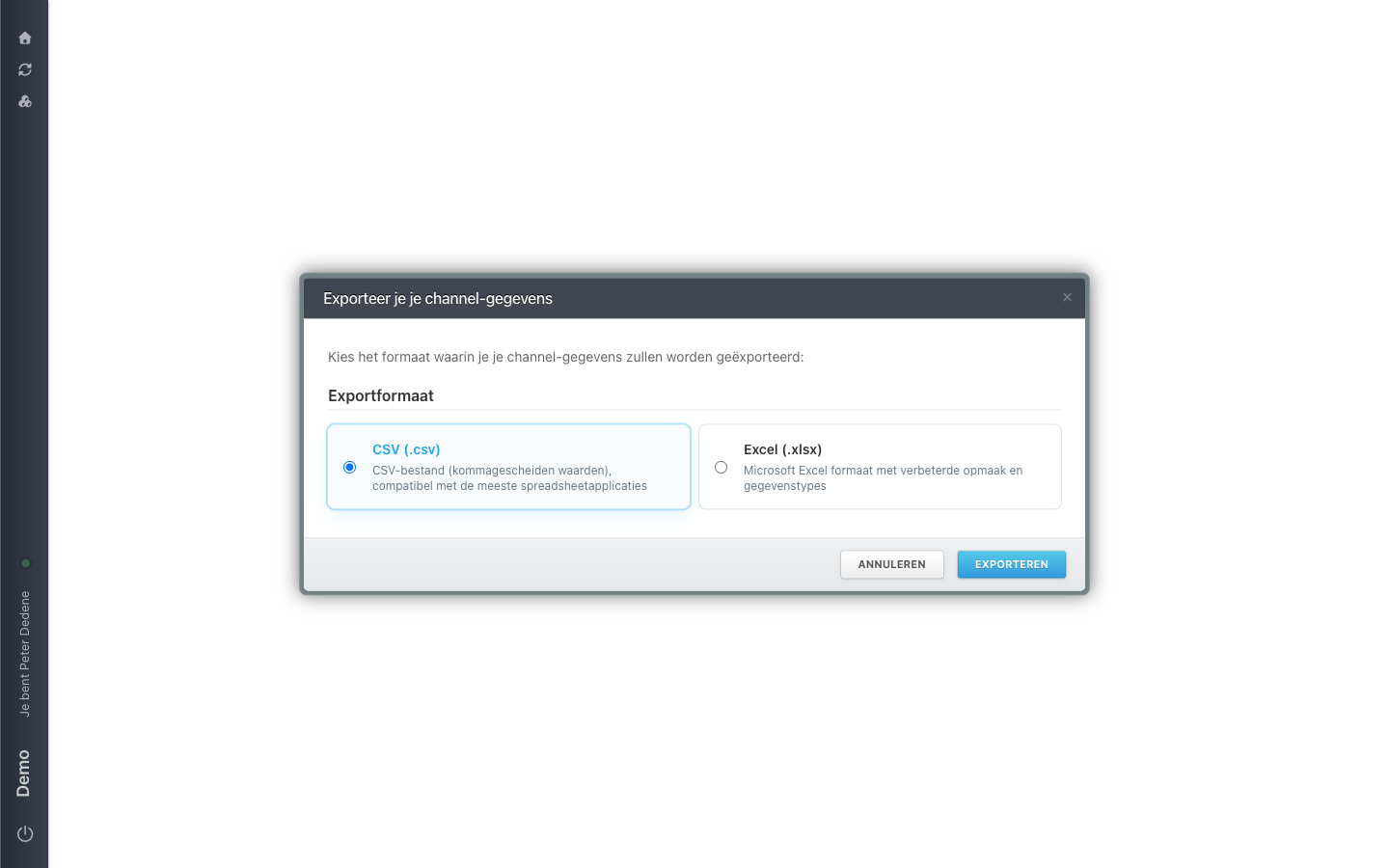
Exporting all data opens a screen of its own, headed Exporteer je je channel-gegevens (export your channel data). Under Exportformaat (export format) you pick CSV (.csv), the format most spreadsheet programs read and the one selected by default, or Excel (.xlsx), which carries formatting and data types along. Then you start with Exporteren (export). Annuleren (cancel) takes you back without doing anything.
 View full size
If you carry on working in a spreadsheet, take CSV. If you hand the file to somebody who just opens and reads it, Excel keeps the formatting tidier.
The active filters on the list decide what goes in, so a filtered list does not automatically give you everything.
The export is assembled in the background. The file does not appear in your browser straight away; you receive it by email. How long that takes depends on the amount of data and on the fields in the channel.
For what the columns actually contain, and why an encrypted field can stay empty, see How channel exports work.