
Create and publish a product
Create a product with a name, a price, and a tax scheme, then set it to active when it is ready.
A new product needs three things before Nimbu will save it: a name, a price, and a tax scheme. Everything else can wait.
 View full size
What to have ready
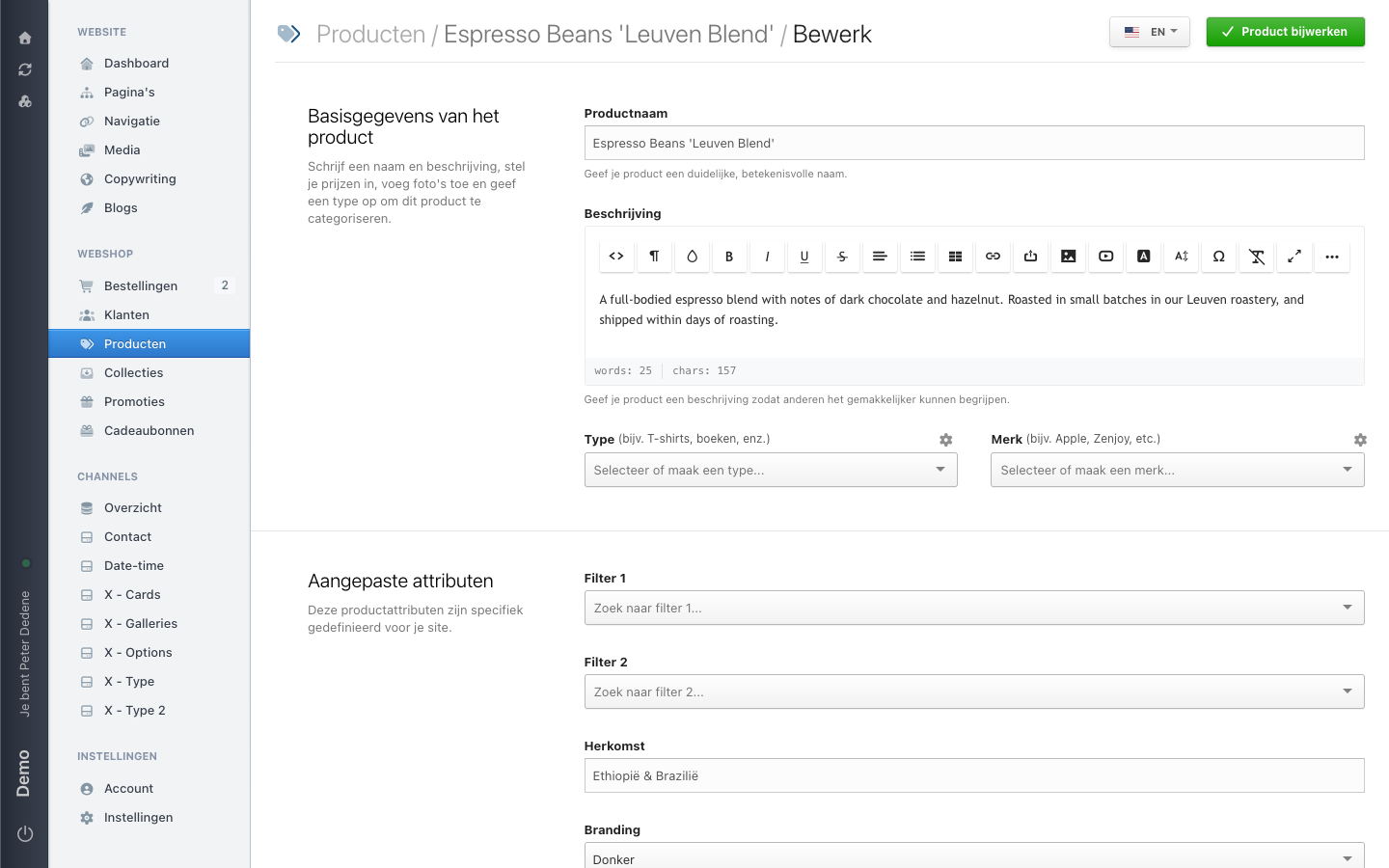
Product name is what the customer reads. At Koffie Zuid, one product is called Espresso Beans 'Leuven Blend'.
Price is what the customer pays. If you sell the same product in several sizes or colours, you set the price per variant later instead.
Tax scheme decides which VAT rate Nimbu applies to this product. Without a scheme you cannot save the product. If you do not know which scheme fits what you sell, ask whoever manages the shop settings. A wrong rate only shows up later, on an invoice.
Create the product
- Open Products in the left menu.
- Choose Product toevoegen (add product) at the top right.
- Fill in the product name.
- Fill in the price in the pricing settings.
- Tick the tax checkbox and pick the applicable tax scheme. The demo site uses
21% VAT. - Save with the green button at the top right. On an existing product it reads Product bijwerken (update product).
The form opens with the product basics: the name, the description, and the Type and Merk (brand) pickers you use to sort your catalogue. Below that come the sections for pricing and stock, for variants, and for search engines.
Hidden or active
Status is the publish switch of a product. Hidden means visitors see the product nowhere in the shop. Active means it can appear in the storefront.
Only set a product to active once the price, tax, and description are right. While it stays hidden you can review everything without anyone being able to order it.
Name and description per language
If your site has more than one language, Nimbu stores the name, the web address, and the description separately for each one. Switch language with the language button at the top right and fill in the translation. A language you leave empty stays empty or falls back to the default language.
The SEO fields
At the bottom of the product you find fields for the title, description, and keywords that search engines show. Leave them empty and Nimbu uses the product name and description. Fill them in when you want different wording in Google than on the page itself. These fields are per language too.