
Set up variants
Turn on variants for a product and give each one a name, a price, and a SKU.
If you sell the same product in several sizes, colours, or weights, make them variants instead of separate products. The customer then chooses on a single product page.
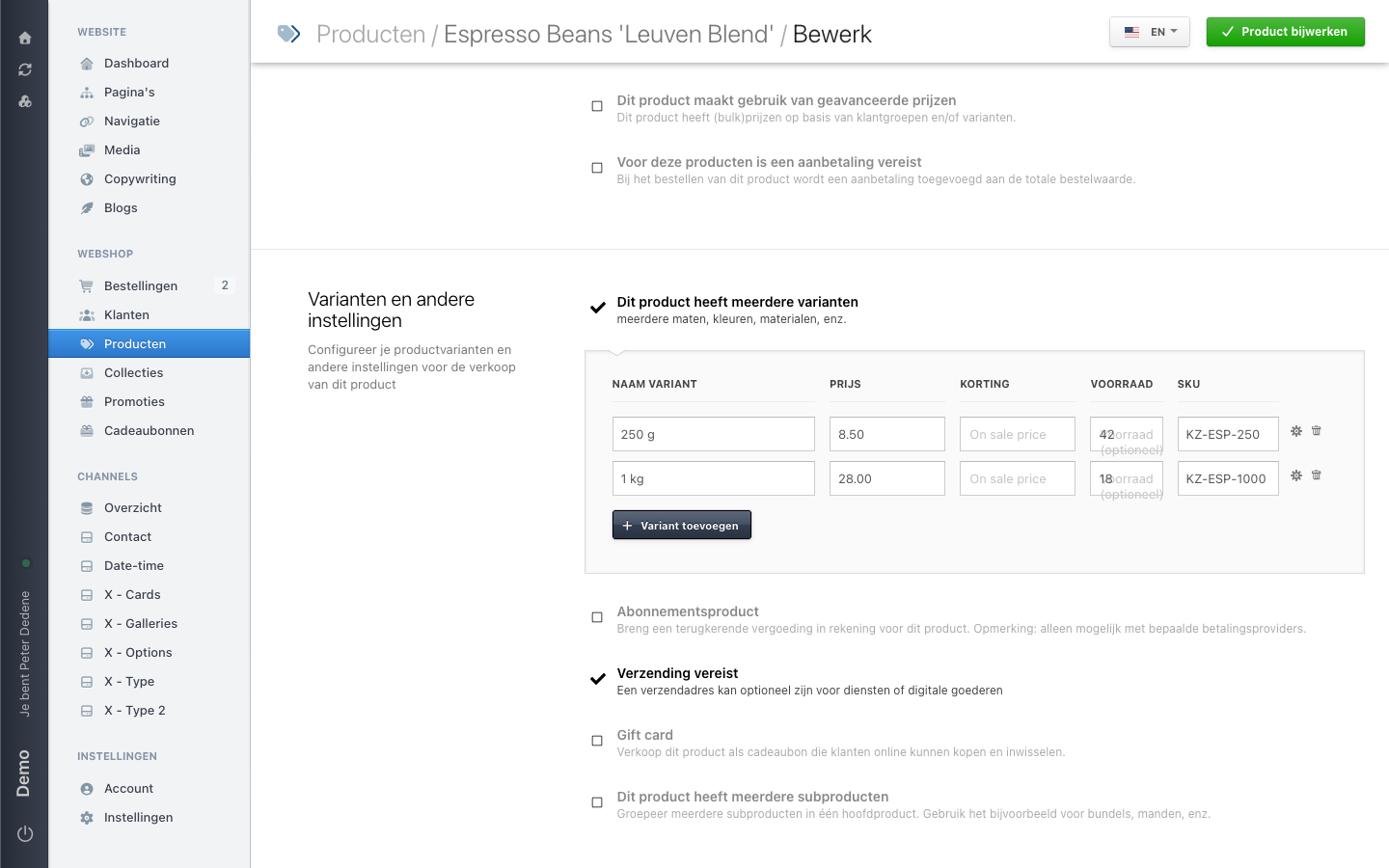
At Koffie Zuid, Espresso Beans 'Leuven Blend' has two variants: 250 g and 1 kg. The ceramic mug has one per colour.
 View full size
Turn variants on
Scroll down the product form to Varianten en andere instellingen (variants and other settings). There you find the checkbox Dit product heeft meerdere varianten (this product has several variants), explained underneath as "several sizes, colours, materials, and so on".
While the checkbox is off, the price and stock of the product itself apply. Tick it and a table appears, with a Variant toevoegen (add variant) button.
The same section holds four more checkboxes: subscription product, shipping required, gift card, and sub-products. None of those relate to variants.
What you fill in per variant
Variant name is the text the customer sees in the selector, for example 250 g. Keep the names of one product in the same style: 250 g and 1 kg, not 250 grams and 1kg.
Price applies to that one variant. A larger pack can cost more than the base price of the product.
Sale price is the lower price you show while the variant is on offer. Leave it empty and the normal price applies.
Stock is optional and only does anything when you track stock for this product. Read Stock and sold-out behaviour before you rely on it.
SKU is your own article code. Nimbu does nothing with it, but it helps you find the right box in your warehouse and recognise the variant in an order.
The gear icon at the end of each row holds that variant's remaining settings. The bin icon next to it removes the row.
What variants mean for the shop
The customer sees one product page with a choice. What they pick decides the price they see. An order records the chosen variant, not just the product name.
In the product list you recognise a product with variants by its stock column, which reads something like "∞ op voorraad voor 2 varianten" (in stock for 2 variants).
A variant you no longer sell
Delete a variant and the choice disappears from the shop. Past orders keep the name of what was ordered at the time. If you are unsure, leave the variant in place and take it out of sale rather than removing the row.