
Add and arrange blocks
Add a content block to a page and put the blocks in the right order.
A page's content is built from blocks: separate pieces such as text, an image, or a call to action. You find them in the editor under Content, in the BLOCKS list.
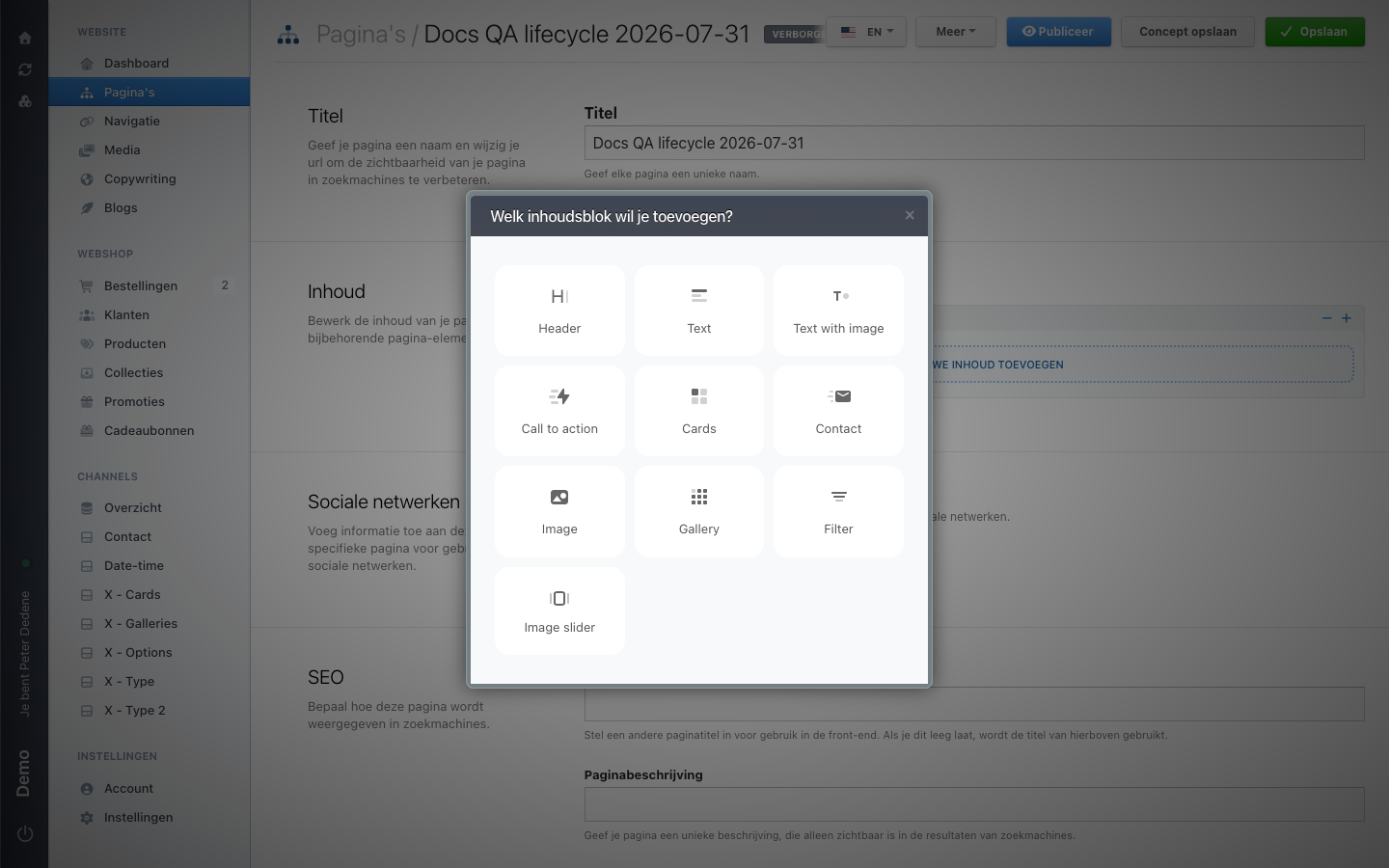 View full size
Add a block
- Open the page and find the BLOCKS list under Content.
- Choose Add new content (NIEUWE INHOUD TOEVOEGEN).
- In the dialog asking which content block you want, choose a type.
- Fill in the block's fields.
- Save the page as a draft, or publish it when it is ready.
Opening the dialog changes nothing. The block is added only once you pick a type and save the page.
Which blocks you get
The page template decides the list. On the demo site it holds Header, Text, Text with image, Call to action, Cards, Contact, Image, Gallery, Filter, and Image slider. Another site can have a shorter or different list, and some pages have no BLOCKS list at all.
Choose a block because it suits your content, not because it happens to be in the list. If you are unsure, look at how the same block is used on an existing page.
Keeping the list readable
Collapse all and Expand all above the list fold every block shut or open at once. On a long page, collapse everything, get the order right, and then open only the block you are editing.
Blocks appear on the page in the order of the list. Check that order before you save, because after saving that is the order visitors see.
Images in a block
For an image or file, use only material that is approved for this site. Files you upload yourself end up in the media library.