
Restore a page from the trash
Restore a deleted page, then check it before you publish or continue editing it.
Use the trash when a page has disappeared from Pages. Restoring brings it back to the page editor, where you can check it before you continue.
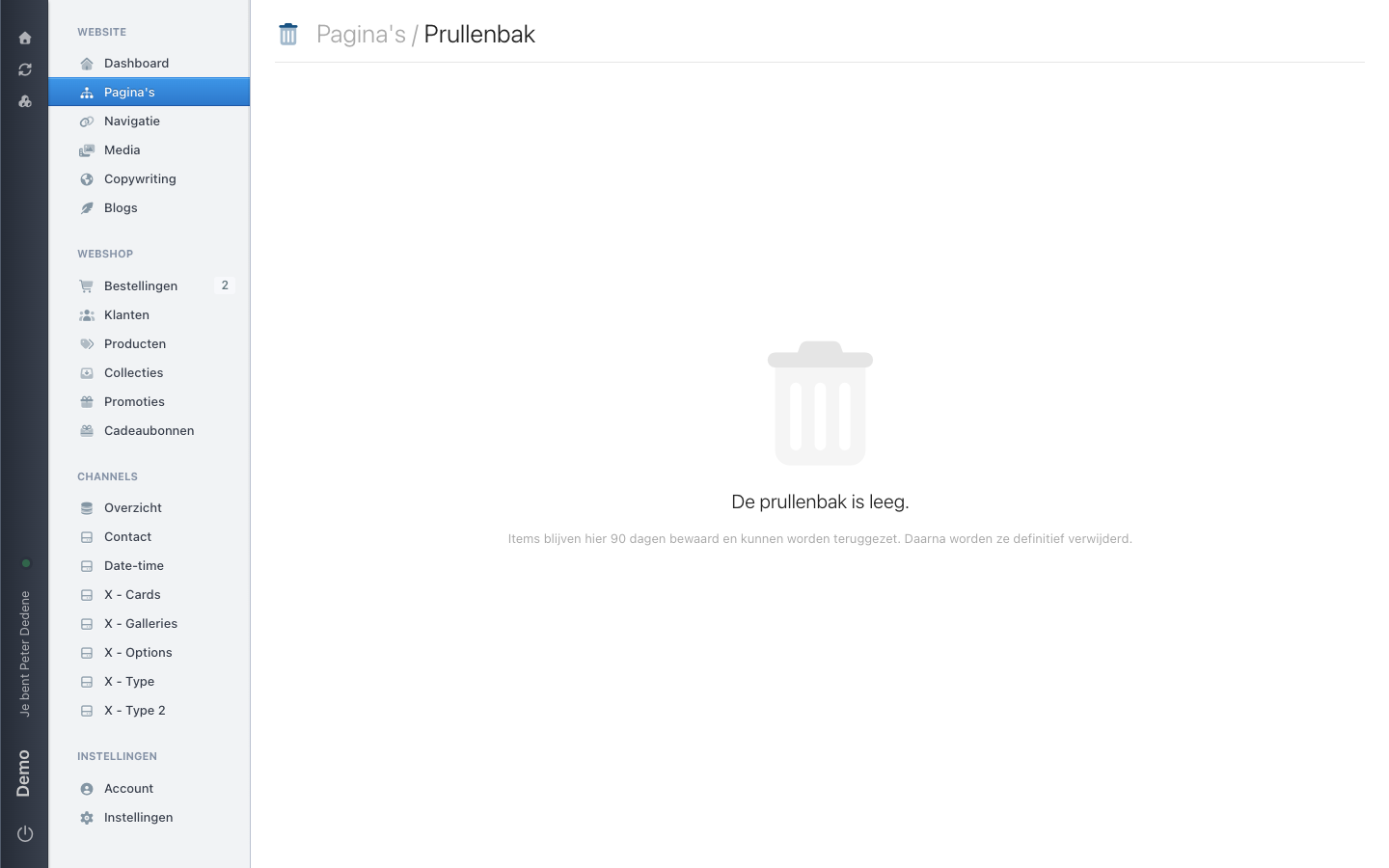 View full size
Before you restore
Check that you selected the right site and language with the language button in the top-right corner. If you cannot see Pages or Trash, ask an administrator for access to Pages.
The trash shows when each page will be removed permanently. Restore the page before the date shown there.
Restore a page
- Open Pages → More → Trash.
- Find the page by its title and page URL. Check the displayed removal date.
- Choose Restore for the right page.
- Wait for the restored page to open in the editor.
- Check the title, page URL, content, place in the page structure, language selected with the language button, and publication state. Check for drafts before you publish.
Check the result: the item is no longer in the trash and the page is back in Pages. Only open or publish the live page after those checks are correct.
If the restored page looks different
Check the URL and publication state first. If the page is in the wrong place, has a different URL, is not published, or is missing an old draft, stop before making further changes. Tell an administrator the page title and the time you restored it.
More about uncommon restore problems
A page with the old URL may already exist, or the original parent page may no longer be available. In those cases, check the restored page carefully before moving, publishing, deleting, or overwriting anything. If restore shows an error, report the page title and time to an administrator.
Permanent deletion and emptying the trash
These actions cannot be undone
Delete permanently removes one page forever. Empty trash removes every page in the trash forever. Never use either action to test on a shared or live page.
Use Delete permanently only after confirming that the selected page is no longer needed. Only the owner of the current site can use Empty trash. Check every item first: it removes all of them, not just the page you last opened.
If something does not work
I cannot find the trash or Restore
Check that you selected the right site. If the option is still missing, ask an administrator for access to Pages.
The page is no longer in the trash
It may already have been restored, permanently deleted, or removed after the displayed date. Search Pages by title and page URL before creating a new page.
I cannot empty the trash
Only the owner of the current site can empty the page trash. If Empty trash fails, ask the site owner to review the items with you.
Trash and drafts
The trash restores a deleted page. A draft is unfinished work on a page that still exists.