
Use the visual editor
Edit a page with the form on the left and a live preview on the right.
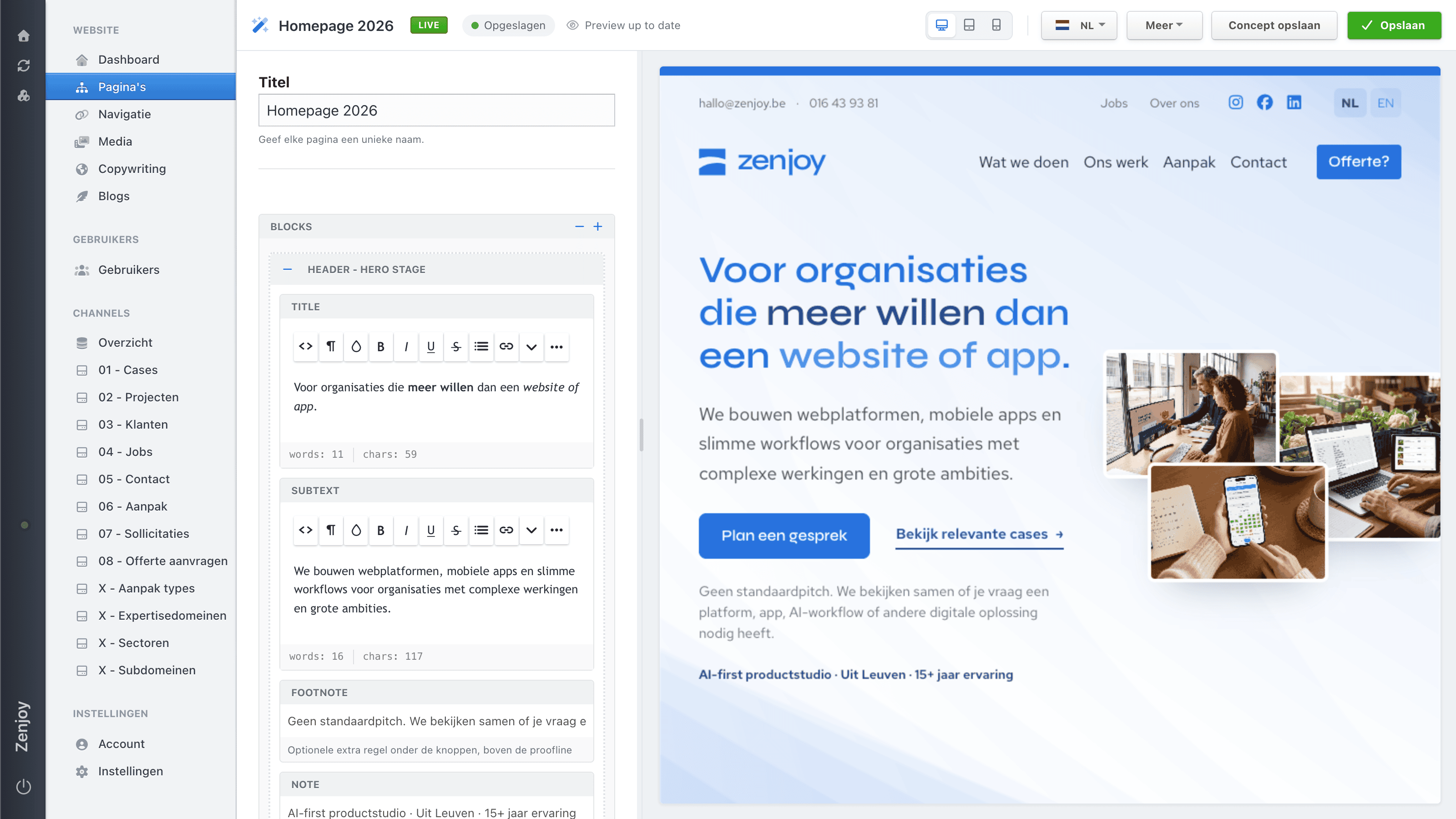
The visual editor puts the page form and the result side by side. You type on the left and see how the page looks on the right.
 View full size
Open the visual editor
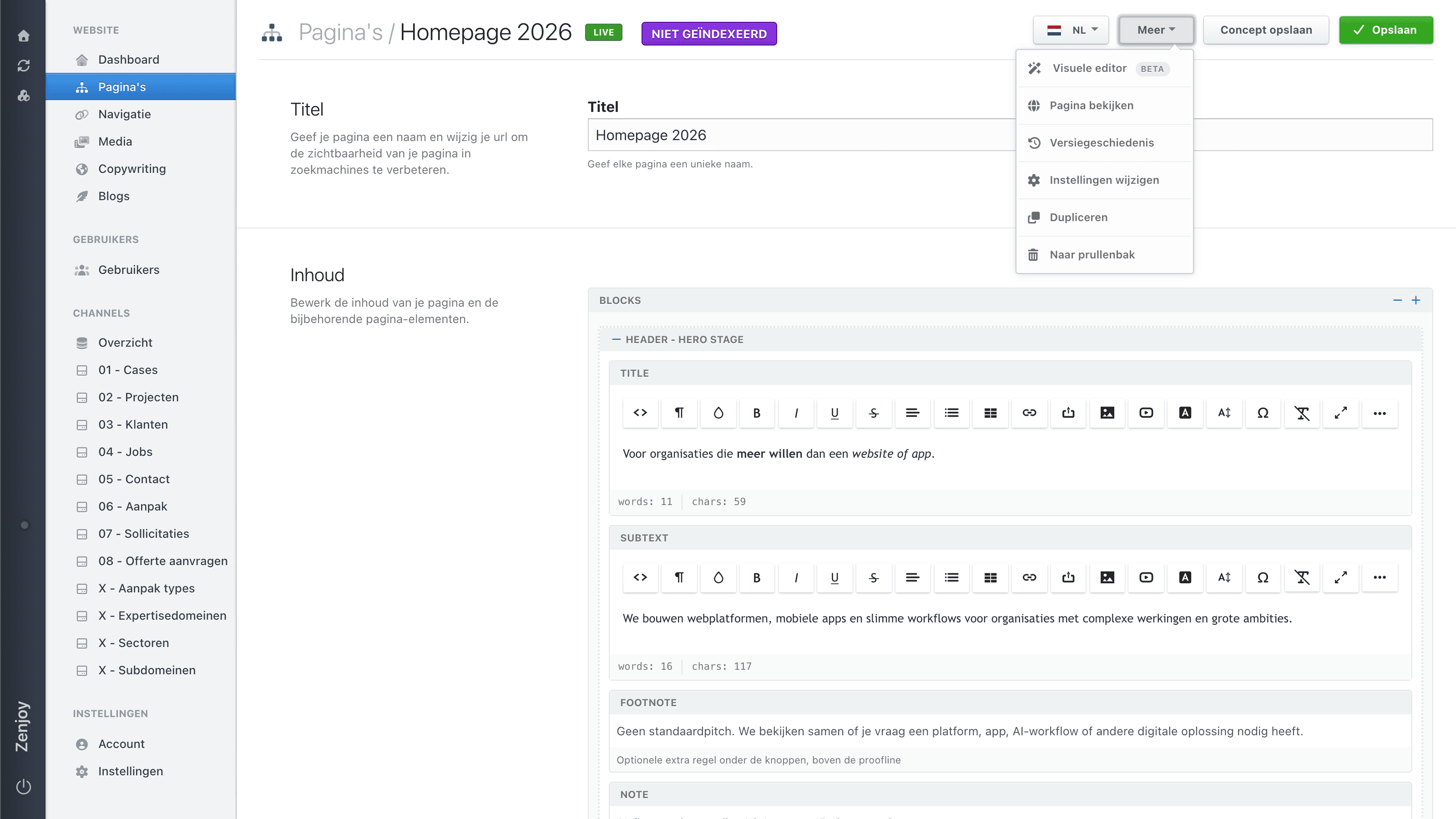
Open a page and choose More (Meer) at the top right. The first choice in that menu is Visual editor (Visuele editor), with a beta label next to it. The workspace then fills your window, with Nimbu's left menu still in place.
 View full size
What sits where
On the left is the same form as in the classic editor: Title, the BLOCKS list with its button for adding content, Social networks, and SEO. The per-section explanations are left out. This column scrolls on its own.
On the right is the page as a visitor sees it, with the theme's real header and footer.
The top bar
 View full size
From left to right you see:
- Page title — the name of the page you are editing.
- Page status — a label such as
LIVE. This is the same status as in the classic editor and tells you whether the page is online. - Saved (Opgeslagen) — this chip tells you whether your latest change has been saved. As long as it says anything else, your work is not saved yet.
- Preview status — the eye icon next to it tells you whether the preview on the right already shows your latest changes (Preview up to date).
- Preview width buttons — the three buttons show the preview at desktop, tablet, or mobile width. Useful for checking that your page looks right on every screen.
- Language button — switch between your site's languages to edit the content per language.
Saving and publishing
The buttons at the top right are the ones you know from the classic editor: Publish, Save draft, and Save. They behave exactly the same here. Until you save, nothing about the page changes, even after you have watched the preview update.
Back to the classic editor
The More menu in the visual editor holds two items: Open classic editor (Klassieke editor openen) and Move to trash. If you need a field or action that is not here, go back through Open classic editor.