
Edit a page in multiple languages
Switch language with the language button and recognise when a language is not translated yet.
A page has one version per site language. You edit one at a time, and the language button decides which one.
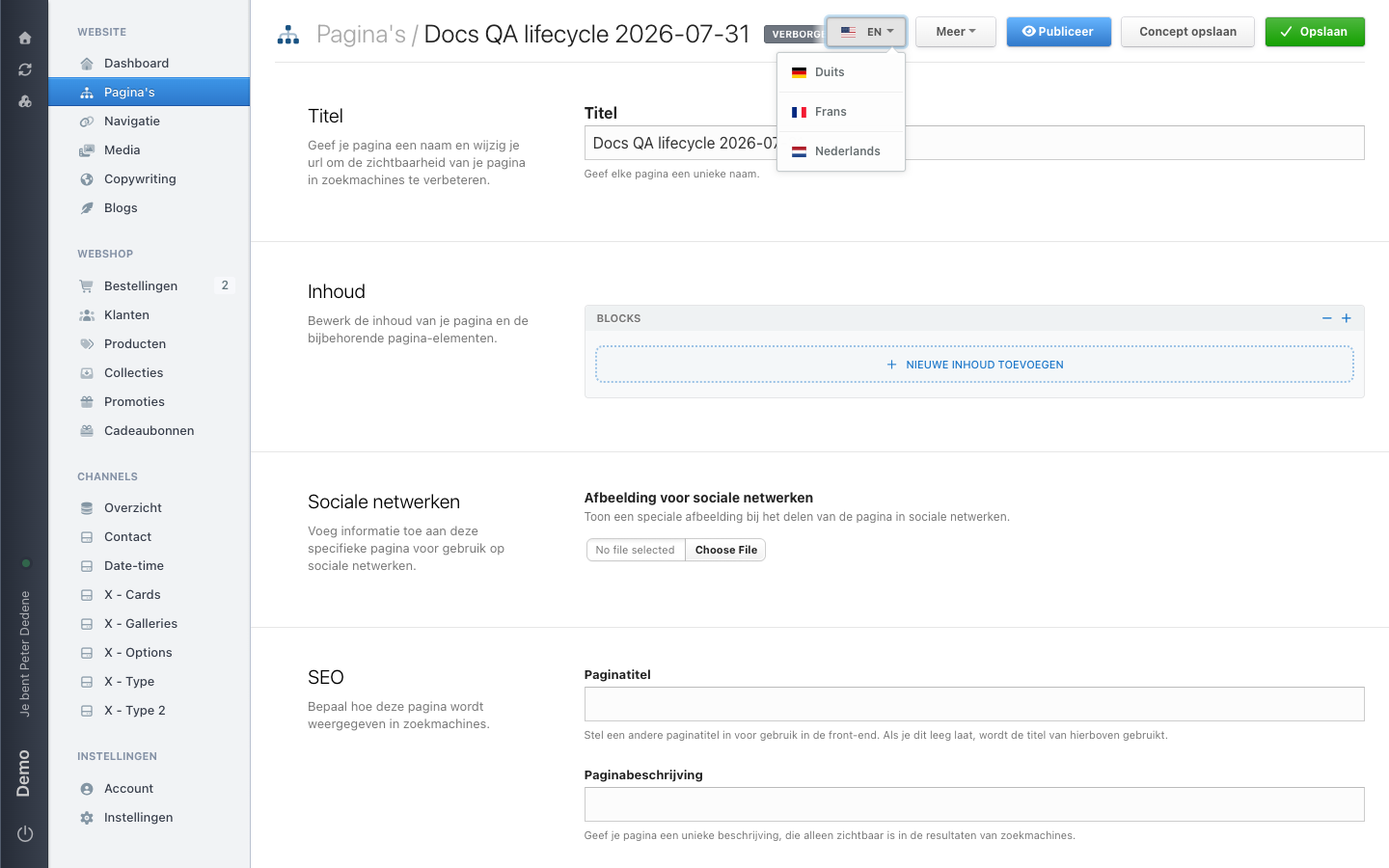 View full size
Switch language
The language button is at the top right of the editor, just left of More. It shows a flag and the active language code, such as EN. Open it and pick a language; the active one is not repeated in the list.
The editor reloads in that language. The same button appears on the pages overview, on Navigation, and on the article list, and does the same thing everywhere: it switches the content language, not the language of the administration.
An untranslated language looks identical
Filled-in fields do not mean the page is translated
When you choose a language the page has not been translated into, Nimbu fills the fields with the values from the default language. There is no message, no marker, and no difference in styling. Only the flag and the language code on the button change.
So read the text itself before you change anything. Text in the wrong language means you are looking at the default language, not at a translation.
A language version starts to exist the moment you save in that language. Until then, visitors in that language keep seeing the default language.
What to check per language
The title, the web address, and the content of the blocks are stored per language. Check the SEO fields as well: the page title, page description, and page keywords stay empty until you fill them in for each language.
Which languages a site has, and which of them are hidden, is set in the settings. If a language is missing from the list, ask an administrator instead of editing the page in another language.