
Publish a page
Take a hidden page live, and put it back offline through the visibility settings.
Publishing is the point where your page turns from internal work into public content. Until then you look at it in the editor or through a preview link; after it, anybody with the address can open it.
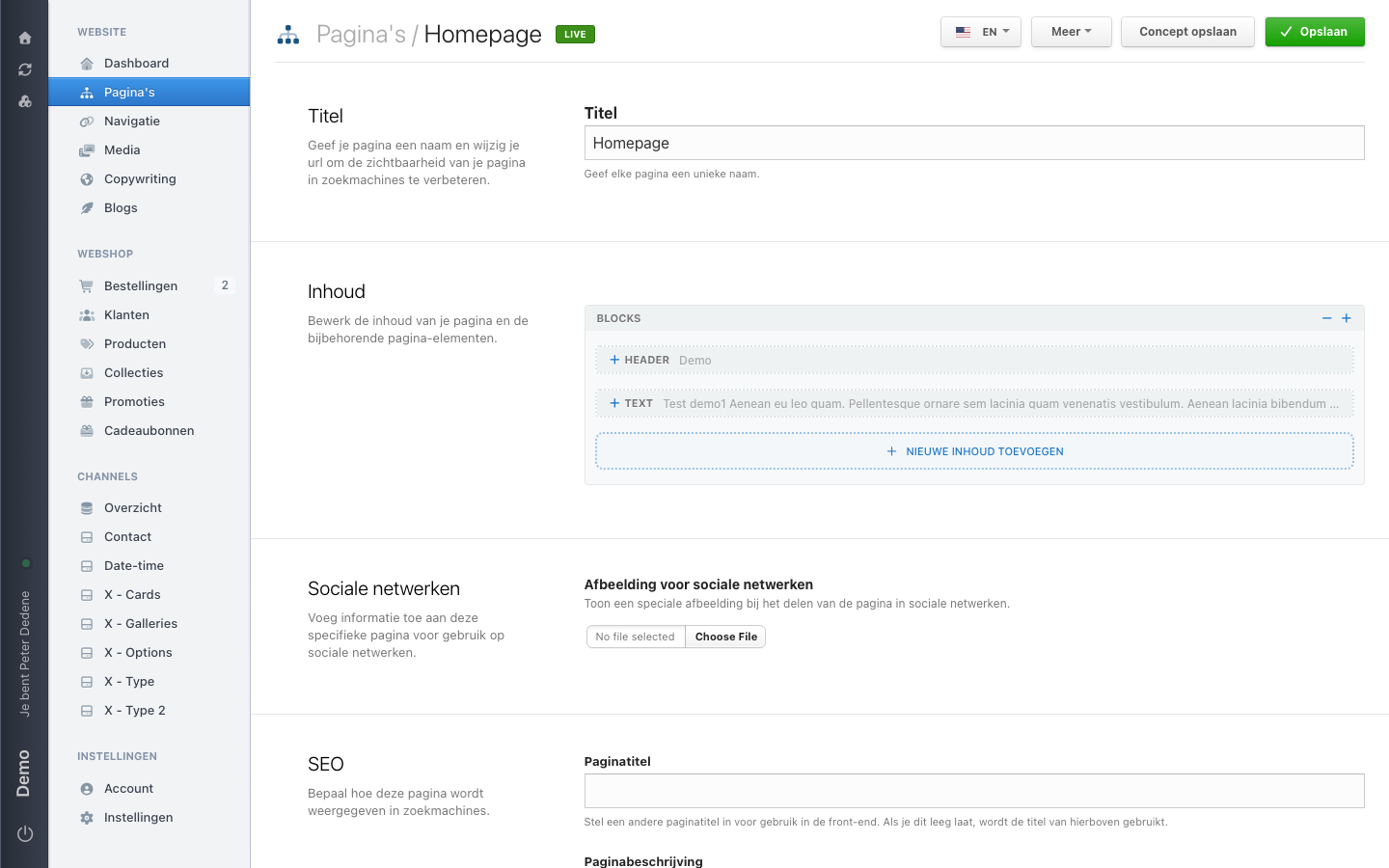
Read the status
A label sits next to the page title at the top of the editor. VERBORGEN (hidden) means only people in the admin see the page. LIVE means it is public.
 View full size
Check what you are about to publish
Read the title, the content, and the selected language as a visitor would. Check that links and images belong with this version. If a draft is still open, confirm it is yours or approved by the colleague who owns it.
Publishing
- Open the page in the editor and check which language is selected in the top right.
- Click Publiceer (publish) in the toolbar.
- Confirm the question "Hiermee maak je deze pagina publiek beschikbaar. Ben je zeker?" (this makes the page publicly available, are you sure?).
The label then changes from VERBORGEN to LIVE, the Publiceer link disappears from the toolbar, and Voorbeeldpagina (preview page) becomes Pagina bekijken (view page). Use that last one to open your page the way a visitor gets it.
Publishing takes effect immediately
Nothing sits between your confirmation and the public address. To show a page at an agreed moment, publish it at that moment. If you have doubts about the content, leave it hidden and share a preview link.
Taking a page offline again
The way back does not run through the toolbar but through the page settings.
- Choose Instellingen wijzigen (change settings) in the editor. A window opens.
- Go to Zichtbaarheidsinstellingen (visibility settings).
- Switch Pagina status (page status) from "Deze pagina is gepubliceerd" (this page is published) to "Deze pagina is verborgen" (this page is hidden).
- Save.
The label goes back to VERBORGEN and the public address sends visitors away. Anybody who shared or bookmarked the link no longer lands on your page.
What else is in that window
Pagina beveiliging (page protection) answers "Wie kan deze pagina bekijken?" (who can view this page?). It defaults to Openbaar (Iedereen) (public, everyone). To show a page only to people logged in on your site, this is the place, not the page status.
Taalinstellingen (language settings) uses Vaste taal (fixed language) and Beschikbare talen (available languages) to decide which languages the page exists in. Leave Beschikbare talen empty and the page counts for all the site's languages. Name one and the page disappears for visitors in the others, so do that deliberately.
The same window also holds the parent page, the template, the channel settings, and the caching strategy. None of those need touching to publish.
When to ask for help
Ask a colleague or administrator to look with you when the change also affects the page address, visitor access, or a shared template. Get a second reader when the text has to be correct in more than one language.