
Checkout and payments
Read what the payment methods, checkout profiles, and payment notification sections do.
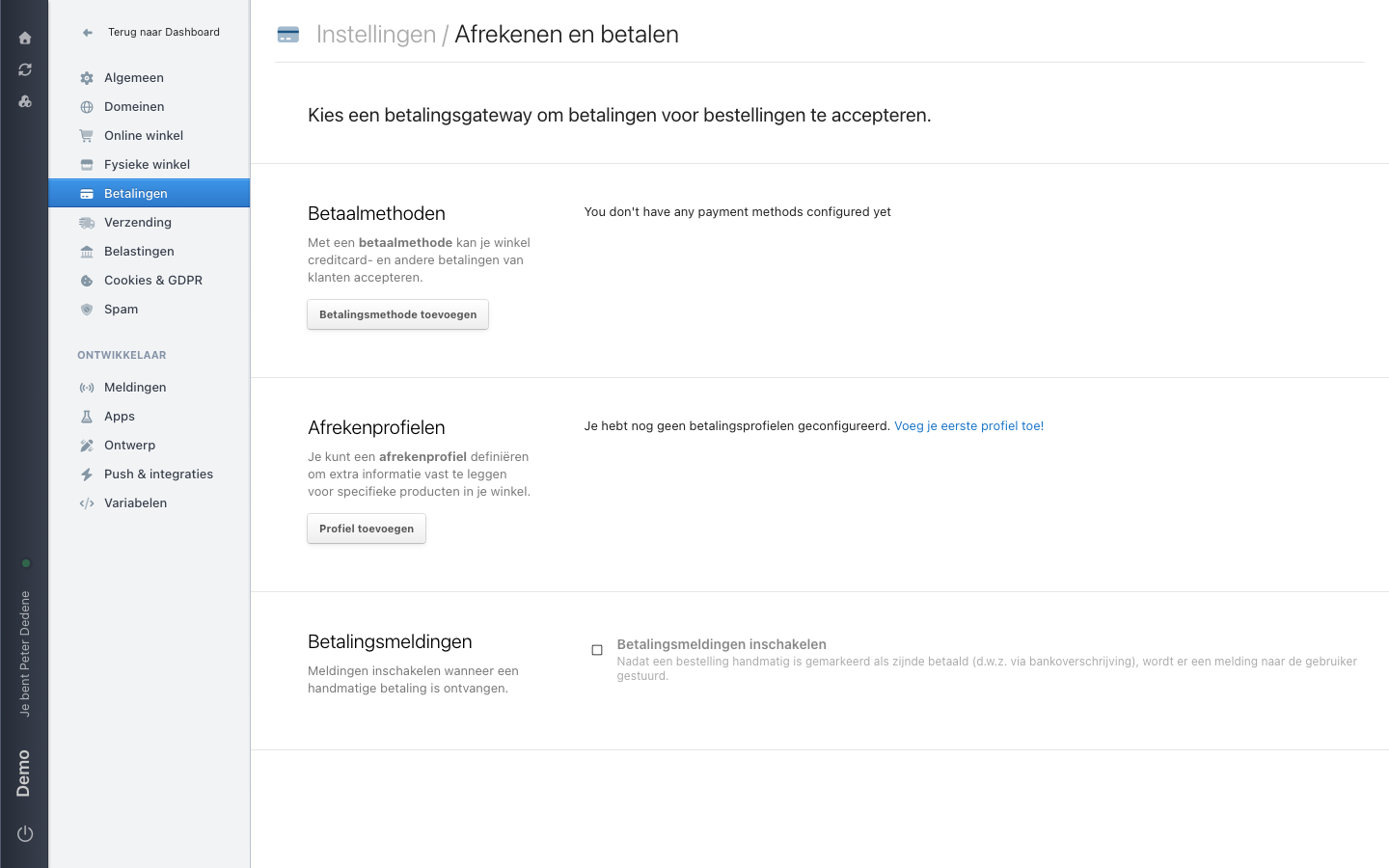
Choose Betalingen (Payments) in the Settings menu to open the Afrekenen en betalen (checkout and payments) screen. The line at the top states what the screen is for: choose a payment gateway so you can accept payments for orders. This page explains the three sections; it gives no setup steps.
The labels below are the Dutch ones you see on screen, with the English meaning in brackets.
 View full size
Betaalmethoden (payment methods)
A payment method lets your shop accept credit card and other customer payments. When the site has none, the screen says so and only Betalingsmethode toevoegen (add payment method) is left.
Afrekenprofielen (checkout profiles)
A checkout profile captures extra information for specific products in your shop. Here too the screen shows a notice for as long as no profile exists, next to Profiel toevoegen (add profile).
Betalingsmeldingen (payment notifications)
This section is about manual payments. Turn on Betalingsmeldingen inschakelen (enable payment notifications) and the user gets a notification after an order is manually marked as paid, for example following a bank transfer. The notification goes to the team, not to the customer.
When the area is missing
First check that you selected the right site. If Betalingen is still absent from the left menu, ask an administrator for access to Settings.