
Manage email templates and notifications
Adjust the automatic emails your site sends and set who gets notified about a new order.
Your site sends emails to customers on its own: an order confirmation, a password reset, a note that a parcel is on its way. Their texts live under Meldingen (notifications), in the Ontwikkelaar (developer) block of the Settings menu. The screen is called E-mails en meldingen.
This page covers editing those texts and choosing who gets notified. For the payment and shipping settings that decide when a mail goes out, see Checkout and payment methods reference.
The labels below are the Dutch ones you see on screen, with the English meaning in brackets.
 View full size
The two blocks on this screen
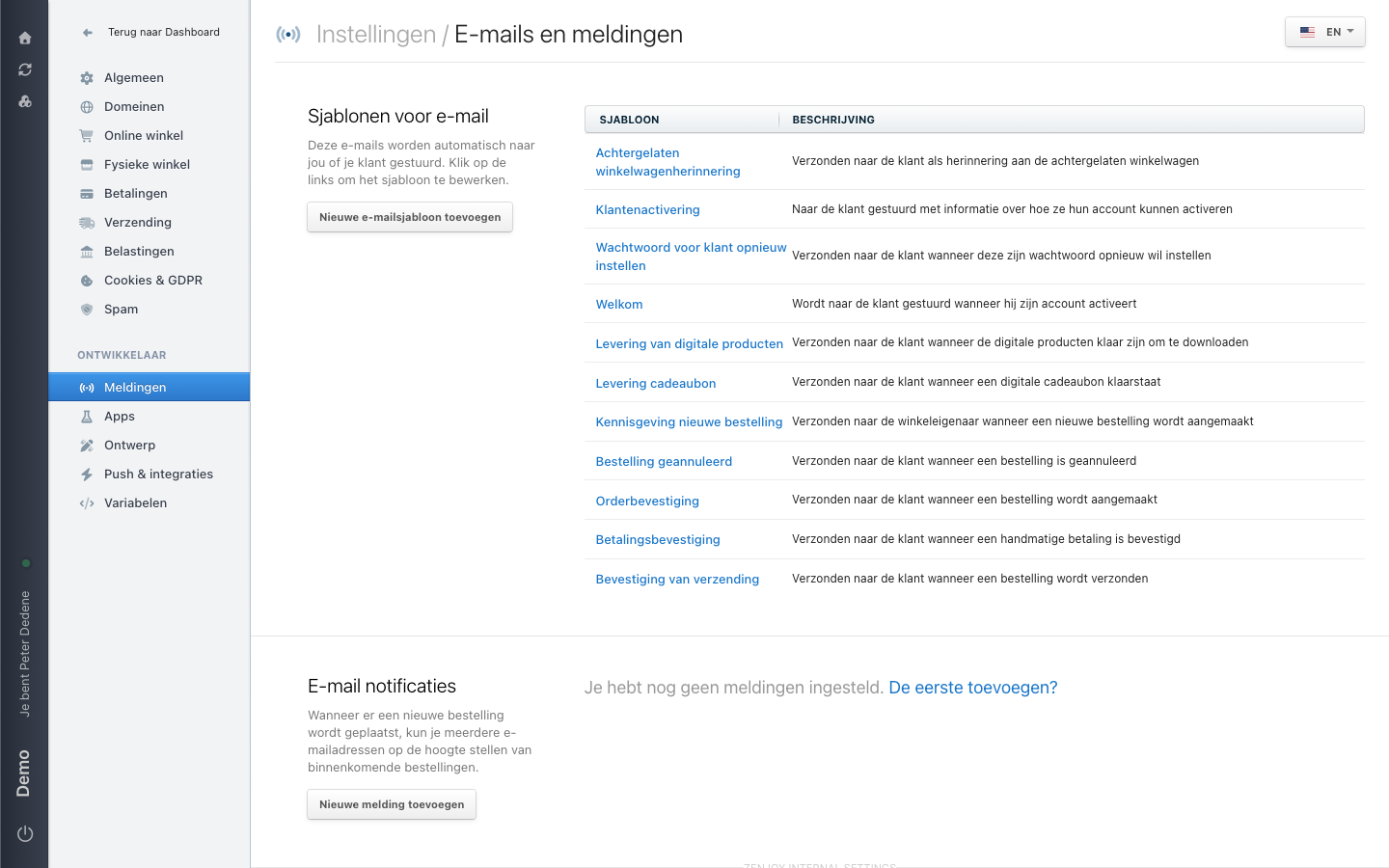
Sjablonen voor e-mail (email templates) at the top holds the mails themselves. Each row is one template, with a description of the moment it goes out. Click the name to edit it.
E-mail notificaties (email notifications) at the bottom does something else: it decides which addresses inside your company hear about an incoming order. On the demo site nothing is set up there yet, showing "Je hebt nog geen meldingen ingesteld" (you have not set up any notifications) and a link De eerste toevoegen? (add the first one?).
Which templates exist by default
The demo site has eleven templates. They exist before you configure anything, so you do not create them yourself.
| Template | When it goes out |
|---|---|
| Achtergelaten winkelwagenherinnering (abandoned cart reminder) | To the customer, as a reminder of the abandoned cart |
| Klantenactivering (customer activation) | To the customer, explaining how to activate the account |
| Wachtwoord voor klant opnieuw instellen (customer password reset) | To the customer, when they want to reset their password |
| Welkom (welcome) | To the customer, once they have activated the account |
| Levering van digitale producten (digital products delivery) | To the customer, when their downloads are ready |
| Levering cadeaubon (gift card delivery) | To the customer, when a digital gift card is ready |
| Kennisgeving nieuwe bestelling (new order notification) | To the shop owner, on every new order |
| Bestelling geannuleerd (order canceled) | To the customer, when an order has been canceled |
| Orderbevestiging (order confirmation) | To the customer, when an order is created |
| Betalingsbevestiging (payment confirmation) | To the customer, when a manual payment is confirmed |
| Bevestiging van verzending (shipping confirmation) | To the customer, when an order has shipped |
Part of that list belongs to the webshop. If your site has the shop switched off, the templates stay in place but nothing goes out.
Nieuwe e-mailsjabloon toevoegen (add a new email template) creates one of your own. Only do that when something also sends it: a theme, an app or an integration. A template nothing calls just sits there.
Editing a template
- Open Meldingen in the Settings menu.
- Click the template name in the list. It expands in place; no new screen opens.
- Adjust Onderwerp e-mail (email subject) and the body.
- Save with the button at the bottom of the expanded template.
 View full size
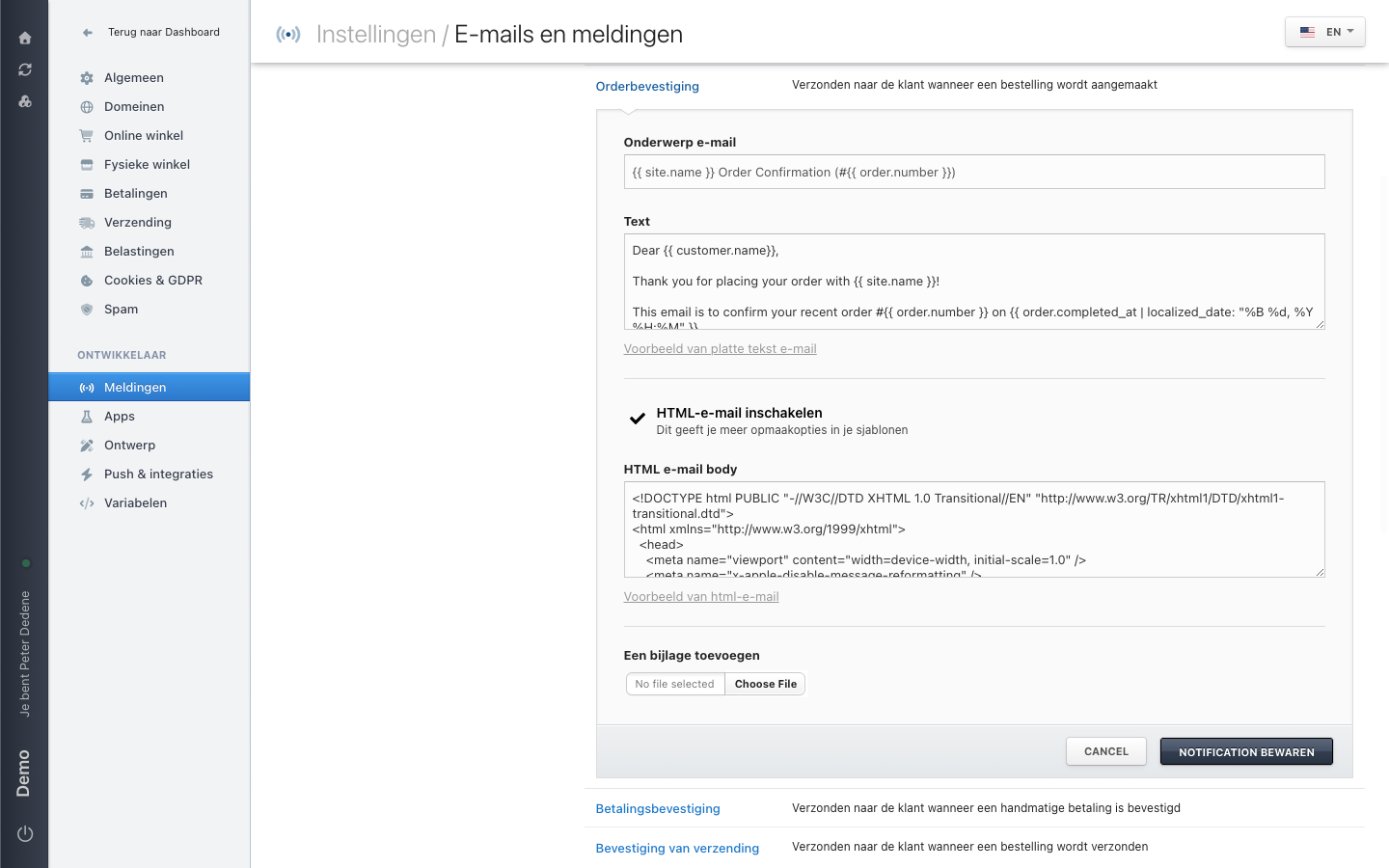
Every template has a subject line and a message body under Text. For formatting, switch on HTML-e-mail inschakelen (enable HTML email); a second field appears, HTML e-mail body, holding the mail's HTML. That field contains full HTML with a doctype and a head. If you do not know HTML, leave it to your developer.
Under each body field sits a preview link: Voorbeeld van platte tekst e-mail (preview of the plain text email) and Voorbeeld van html-e-mail (preview of the html email). That lets you read the result back without sending anything. At the bottom, Een bijlage toevoegen (add an attachment) sends a file along with every mail from this template.
Leave the curly braces alone
The subject and body contain fragments like {{ order.number }}, {{ site.name }} and {{ customer.name }}. Nimbu fills those in with real data when it sends. Delete or rename one and that detail disappears from the mail. Move them around if you want, but do not retype them.
The language selector in the top right shows a flag and a language code. Texts differ per language, so check which language is selected before you rewrite anything. Otherwise you edit a version your visitors never see.
A preview is not a real mail, and you cannot pull a sent mail back. To be completely sure about a change, place a test order yourself or walk through the flow that triggers the mail.
Who gets notified
The E-mail notificaties section at the bottom sends an internal message when a new order comes in. The on-screen explanation puts it this way: you can notify several email addresses about incoming orders.
Nieuwe melding toevoegen (add a new notification) adds a recipient. On a site that has none yet, the De eerste toevoegen? link does the same.
Use a shared address such as orders@ rather than one colleague's personal address. Then nothing needs changing when somebody leaves or goes on holiday.
Which address the mails come from
The sender address is not part of the templates. It is a separate site setting, together with the service that actually delivers the mail. The demo site runs that through its own SMTP server.
When the sender address or the mail server changes, involve your developer or site administrator. The domain you send from has to be verified, and you arrange that under Domeinen (domains), not here. See Connect a custom domain for the sender domains.
If Meldingen is missing
Meldingen sits under the Ontwikkelaar heading. If you do not see that heading, your role probably has no access to that block. Ask an administrator whether the area is available for the selected site.