
Set up webhooks
Let your site notify another system the moment something happens, without anyone retyping data.
A webhook is a phone call from your site to another system. When something happens, a new order or a new submission for instance, Nimbu immediately sends a message about it to an address you provide. The other system does not have to keep asking whether anything is new.
Without a webhook there is always somebody in between retyping or exporting data. With one it happens within a second and without typos.
When you need one
Useful when another system has to act the moment something changes in Nimbu: a newsletter service picking up a signup, an accounting package receiving an order, an internal dashboard tracking how many requests come in.
Not useful when you just want to know what happened. An email notification or the overview in the admin covers that.
Where they live
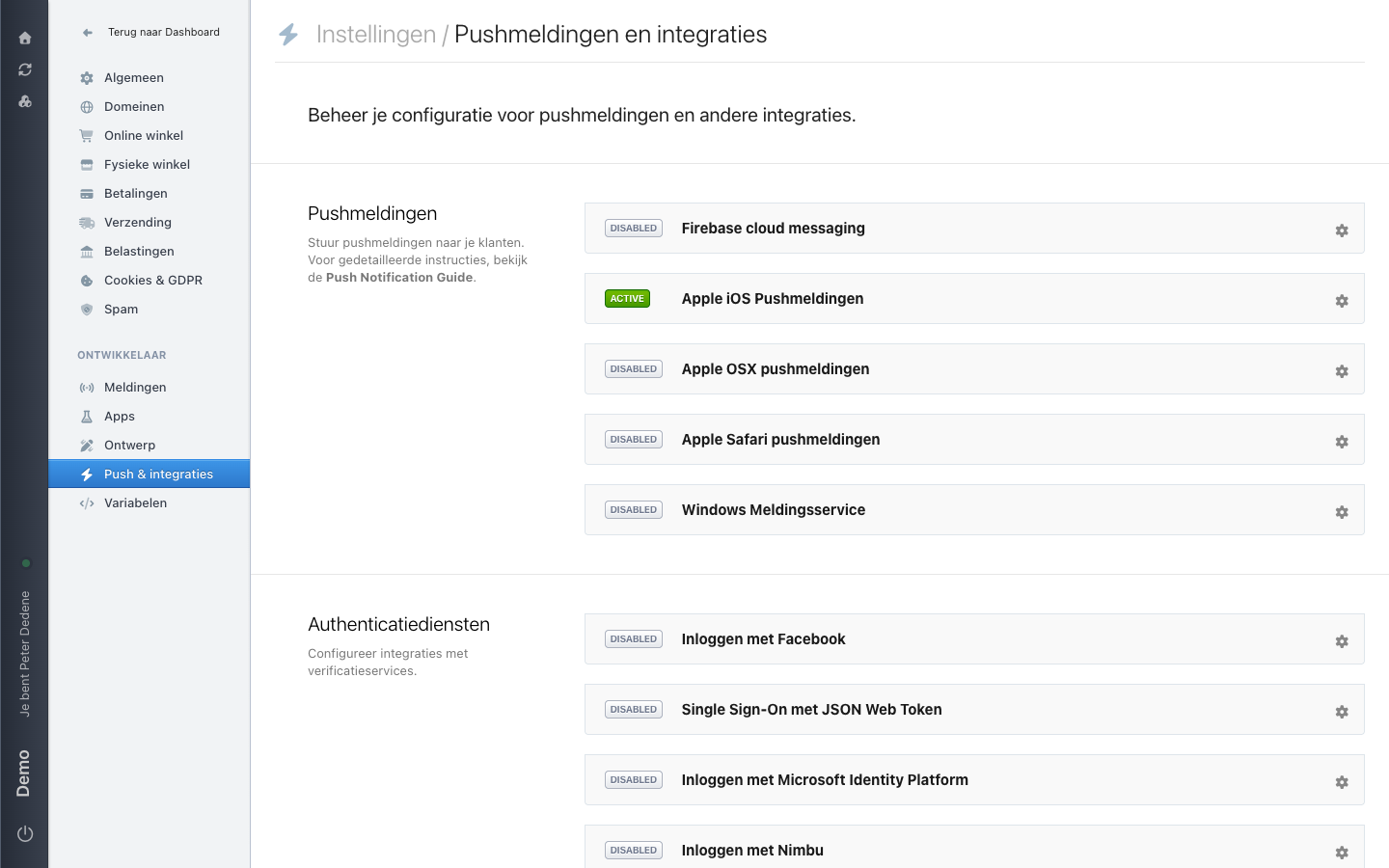
Webhooks have no menu item of their own. They sit as a section on Push & integraties (push and integrations), under the Ontwikkelaar (developer) heading in the Settings menu. On that screen, scroll past the push notifications and the authentication services until the webhooks appear.
 View full size
The demo site has no webhooks configured. On a site without any, the section stays empty until you add one.
What a webhook holds
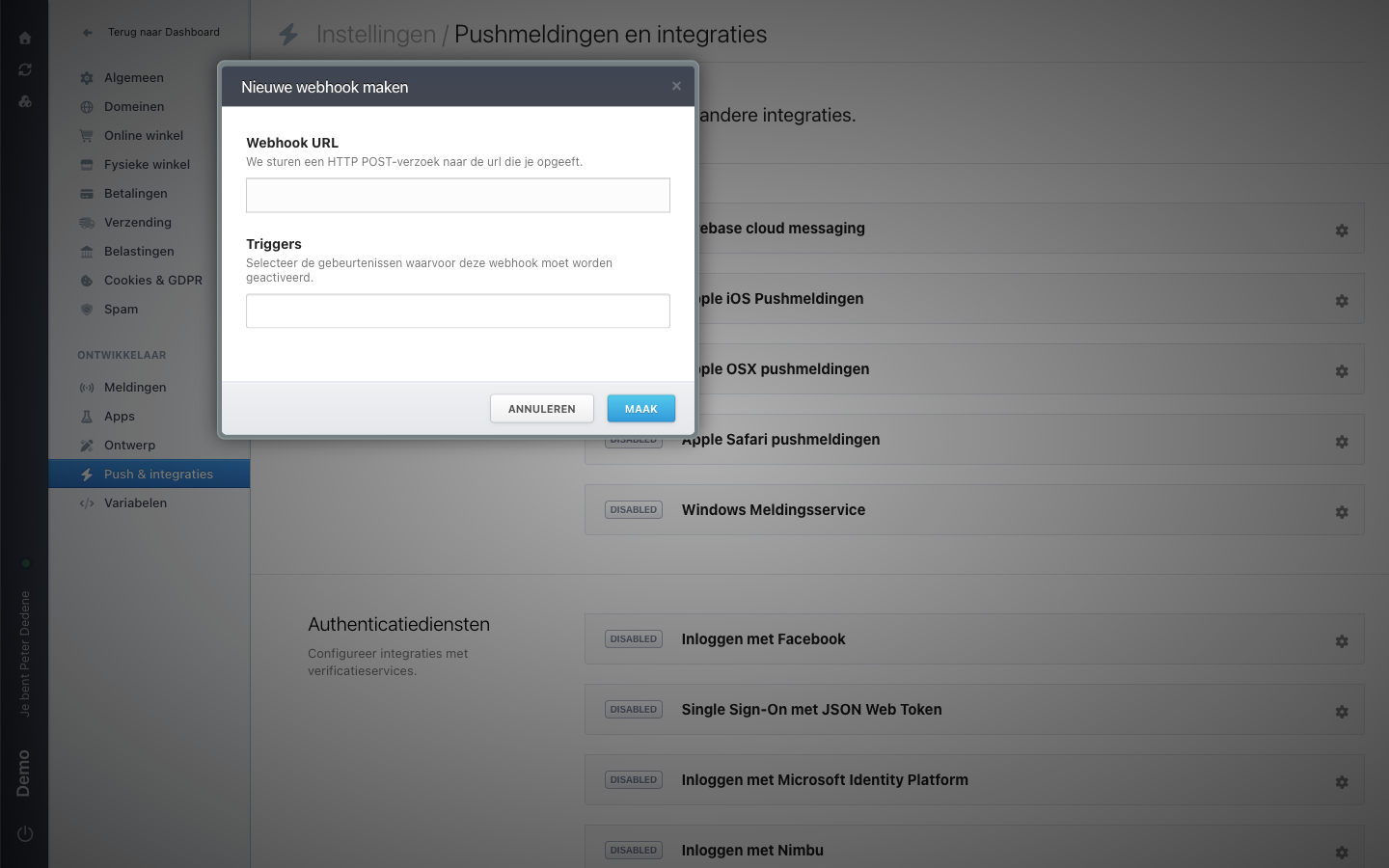
The Nieuwe webhook maken (create a new webhook) window asks for three things.
Webhook URL is where Nimbu sends. The screen puts it this way: "We sturen een HTTP POST-verzoek naar de url die je opgeeft" (we send an HTTP POST request to the url you provide). That address comes from the receiving system, and that system has to be ready for it. Inventing an address does not work.
Triggers are the events the webhook fires on. Pick as few as you can. Every event the receiver ignores is traffic you have to sort through later when something goes wrong. Which events appear depends on what runs on your site, so open the field to see what yours offers.
Channel limits the webhook to one channel. Leave it empty and it fires for all of them. If the webhook handles your contact form submissions, name that channel, otherwise the receiver also gets everything from your other channels.
 View full size
Creating one
- Ask the receiving system for the address Nimbu should send to.
- Open Push & integraties in the Settings menu and find the webhooks section.
- Choose the action to add a webhook. The Nieuwe webhook maken window opens.
- Paste the address, pick the triggers, and name a channel if you want one.
- Confirm with Maak (create), then have the other system check the message arrives.
That window is the only way in. The create form has no separate web address you can open directly.
Do not skip step five. A saved webhook looks exactly the same in the admin whether the message arrives or not.
The address is a key
Anyone who knows your webhook address can send fake messages to it. Treat it like a password: not in a public repository, not in a ticket, not in a shared spreadsheet. If it does leak, have the receiving system issue a new address.
If nothing arrives
Ask the receiving side first whether they see anything come in. That is usually where it sits: an address with a typo, a system that receives the message but rejects it, or a service that was down.
Sending is not the same as processing. Nimbu can have delivered the message cleanly while the receiving system throws it away.
Involve the developer who built the connection when the two of you cannot work it out. They can look at both ends.
Related, but different
Above the webhooks, the same screen holds connections to services Nimbu knows about, each with its own configuration behind the gear icon. A webhook is more general: it sends to any address you provide. See Push notifications and integrations for that list.
If a ready-made integration exists for your service, use it rather than a webhook of your own.